The open‑source nature of Camoufox is what made the project so popular and appealing. Unfortunately, that same openness is also what allowed anti‑bot giants to study it closely and eventually crack down on it.
Rayobyte, the proxy and web scraping solutions provider, has taken a different approach. They recently released rayobrowse, a closed‑source yet Docker‑based, self‑hostable stealth browser built for local browser automation and web scraping.
In this post, I’ll take a deep look at this solution and walk you through everything you need to know about it. By the end, you’ll understand what rayobrowse is, how its stealth browser approach works, how to set it up, and whether it’s actually worth paying attention to.
Before proceeding, let me thank NetNut, the platinum partner of the month. They have prepared a juicy offer for you: up to 1 TB of web unblocker for free.
Let me introduce you to the world of rayobrowse, helping you understand what it is and what makes this project special.
What is rayobrowse?
rayobrowse is a self-hosted, Chromium-based stealth browser engineered for web scraping, AI agents, and automation workflows. It’s available as a Docker image, with optional support via a Python SDK (rayobrowse on PyPI) for simplified connection. The project is developed and maintained by Rayobyte.
The stealth browser runs inside Docker and is available via the Chrome DevTools Protocol (CDP). That means tools like Playwright, Puppeteer, and Selenium (or any other tool that speaks CDP) can natively connect to it for automation purposes.
What makes it noteworthy is its approach to device fingerprinting. User agents, screen size, WebGL, fonts, timezone, and other signals are tuned so each session looks like a real browser. That way, it helps your automation avoid detection on protected websites.
Core Principles Driving the Solution
These are the core principles and goals behind the project:
It should run on Linux server environments without GPUs or a GUI/desktop interface.
It should patch Chromium at the C++ level, rather than at higher layers like CDP, which are easier for anti-bot systems to detect.
It should support both headful mode (via Xvfb) and headless mode.
It should emulate fingerprints from real-world devices across different regions.
It should be self-hostable, so you can run it locally without relying on cloud infrastructure.
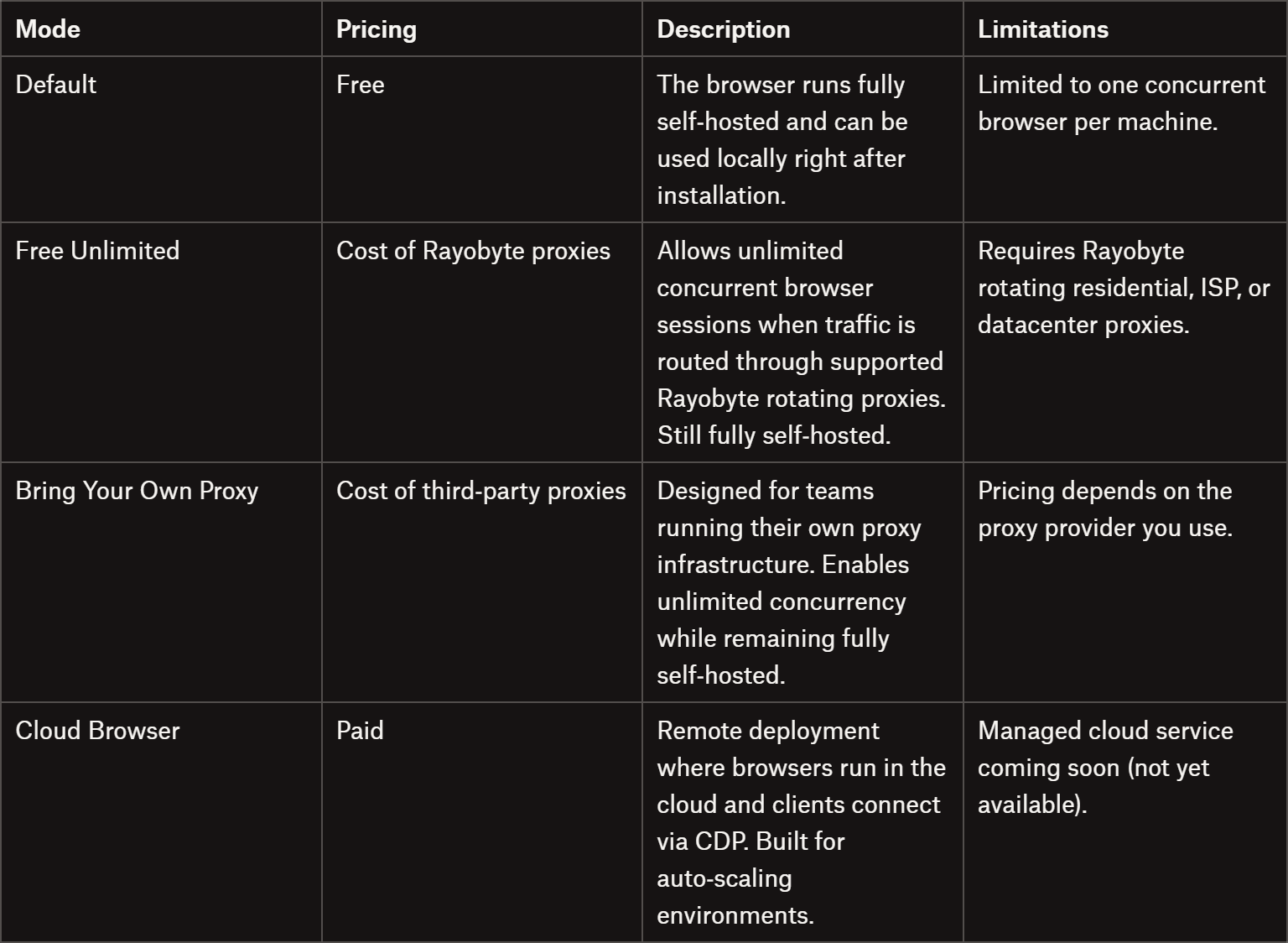
It should be free to test and use for certain user segments.
It should reliably bypass major anti-bot systems and scraping targets, including complex ecommerce and SERP platforms.
Note: If you’re not familiar with Xvfb, that’s an in‑memory display server for Unix-like systems that implements the X11 display protocol without requiring a physical display or input devices. In simpler terms, it allows GUI applications to run in headless environments. rayobrowse relies on it to launch headful browser sessions even on servers without a graphical interface (that’s beneficial as headful sessions are harder to detect than purely headless ones).
Main Features for Stealth Browsing and More
Here is a list of the most relevant rayobrowse features:
Fingerprint spoofing:Each browser session comes with a real-world realistic device fingerprint drawn from a database of thousands of profiles. Signals include user agent, OS metadata, screen resolution, fonts, WebGL, hardware concurrency, and timezone.
Human‑like mouse movement: Optional human‑style cursor behavior (inspired by HumanCursor) makes automation appear more natural. When using standard Playwright actions like page.click() or page.mouse.move(), the library applies realistic curves and timing.
Proxy Integration: Traffic can be routed through any HTTP proxy, including authenticated and rotating proxies.
Headless and headful Support: rayobrowse supports both execution modes, even on GUI-less Linux servers.
Live session viewer:A built‑in noVNC interface (available at http://localhost:6080) lets you watch browser sessions in real time directly from the browser. This is particularly useful for debugging scraping flows and visually verifying fingerprint behavior.
Official integrations:The browser integrates with common automation frameworks, namely Playwright, Puppeteer, Selenium, and Scrapy (via scrapy-playwright), as well as emerging AI‑driven tools such as OpenClaw. As of this writing, additional integrations (e.g., Firecrawl and LangChain) are planned.
Remote/Cloud mode: rayobrowse can run as a remote browser service. Your server requests new browser instances through a REST API, and workers connect directly to the returned CDP WebSocket endpoint. This is still a beta feature.
API‑driven browser management:The daemon exposes REST endpoints for creating, listing, and deleting browser sessions, allowing you to orchestrate multiple browsers across a distributed scraping infrastructure.
Technical Details About the Project
Now that you know what the project is and the features it provides, you’re ready to dive into the technical aspects.
How rayobrowse Works
At a high level, rayobrowse follows these steps:
Chromium patching:The project tracks upstream Chromium releases and applies a focused set of patches (relying on an approach similar to Brave’s “plaster” model). These patches normalize exposed browser APIs, reduce fingerprint entropy leaks, improve automation compatibility, and preserve native Chromium behavior whenever possible.
Fingerprint assignment: When a browser session starts, rayobrowse assigns a realistic device fingerprint.
Automation integration: Browser automation libraries connect to rayobrowse through the native CDP.
Architecture
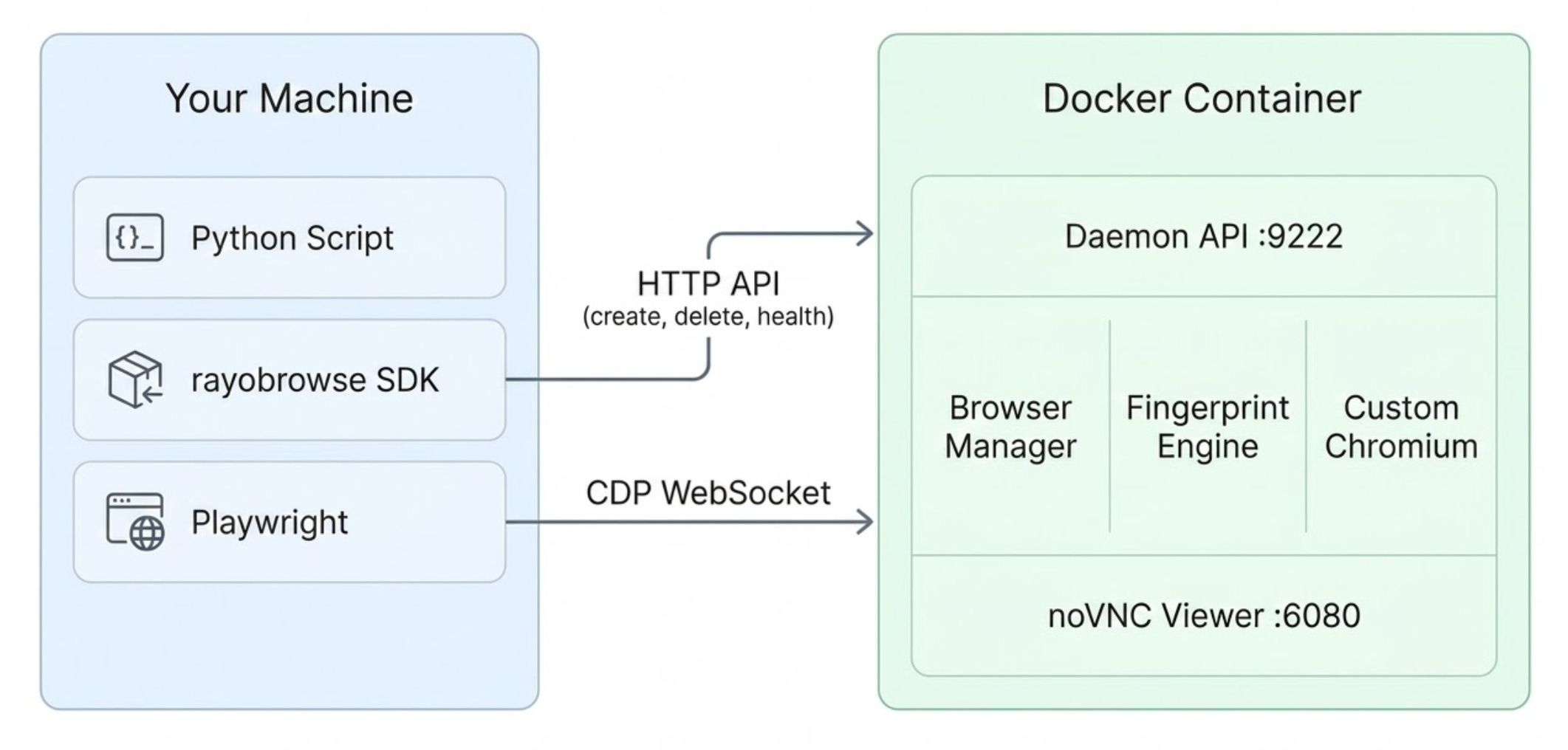
Architecturally, rayobrowse follows a clean separation between the browser runtime and the automation code.
rayobrowse’s architecture
In particular, the system runs as a Docker container that bundles three core components:
A daemon server that manages browser sessions.
A browser manager that downloads and retrieves the correct version of Chromium, a fingerprint engine that injects realistic device profiles, and a stealth browser layer containing a custom Chromium build with stealth patches.
A noVNC viewer, which lets you watch browser sessions in real time. This is useful for debugging and demos.
As you can see, the automation scripts don’t run inside the container. Instead, they run on the host machine and connect to the browser remotely through the Chrome DevTools Protocol.
When a new session starts, rayobrowse assigns a real-user-looking fingerprint from a large database of actual devices, containing thousands of permutations collected from websites Rayobyte owns.
Requirements
The rayobrowse project is designed to run on Linux servers without GPUs (which is a common deployment environment).
These are the required prerequisites:
Docker, as the browser runs entirely inside a container.
~2GB of available RAM, as each browser instance uses ~300MB.
The main benefit of this Docker-based approach is that you don’t need to install Chromium locally, configure fonts, or set up Xvfb manually. All of those dependencies live inside the container, which keeps the host machine clean, portable, and reproducible.
It also makes the project well-suited for self-hosted environments without exposing its internal Chromium patching logic, making it much harder for anti-bot solution providers to reverse engineer how it works.
In terms of compatibility, rayobrowse works on Linux, Windows (native or WSL2), and macOS. The supported architectures are x86_64 (amd64) and ARM64 (Apple Silicon and AWS Graviton). Still, you don’t have to worry about the architecture, as Docker automatically pulls the correct image for the host machine.
Optional: If you plan to use the stealth browser through the Python SDK, an additional requirement is Python 3.10+.
There are two main ways you can access rayobrowse:
The /connect endpoint.
The built-in Python SDK.
Method #1: Use the /connect Endpoint
The first rayobrowse usage method involves connecting directly to the /connect endpoint. This allows any CDP‑compatible tool (including Selenium, Playwright, and Puppeteer) to open a browser session simply by pointing to a WebSocket URL like ws://localhost:9222/connect.
For instance, take a look at the Playwright connection example below:
from playwright.sync_api import sync_playwright

with sync_playwright() as p:
    # Connect to rayobrowse via CDP
    browser = p.chromium.connect_over_cdp("ws://localhost:9222/connect")
    page = browser.new_context().new_page()

    # Automation logic...

    browser.close()
Keep in mind that the WebSocket browser connection URL can be customized using query parameters, as follows:
This URL creates a rayobrowse Chromium browser session in headful mode, using Android-based fingerprints, while routing all requests through the proxy http://user:pass@host:port.
Explore all /connect query parameters in the docs.
Method #2: Use the Python SDK
You can also interact with rayobrowse through the built-in Python SDK. This exposes a create_browser() function that returns a CDP WebSocket URL for a newly created browser instance. From there, connect using Playwright or another automation framework, as shown below:
from rayobrowse import create_browser
from playwright.sync_api import sync_playwright

# Configure the rayobrowse connection to run in headful mode
# while simulating a Windows-based fingerprint
ws_url = create_browser(headless=False, target_os="windows")

with sync_playwright() as p:
    # Connect to rayobrowse with the configured URL via CDP
    browser = p.chromium.connect_over_cdp(ws_url)
    page = browser.contexts[0].pages[0]

    # Automation logic...

    browser.close()
This approach gives you more control over the browser lifecycle, but it also involves more configuration and setup.
For more examples (e.g., proxy integration, multi-browser management, etc.), check out the docs.
Get Started with rayobrowse: Step-by-Step Guide
In this guided section, I’ll show you how to build a simple Playwright script that connects to rayobrowse.
For the sake of simplicity, I’ll assume you already have:
A Unix-based system (Linux, macOS, or Windows via WSL).
The cloned folder already includes everything you need to get started, including:
docker-compose.yml:For running the browser container.
requirements.txt: For installing the Python SDK.
Step #2: Set Up the Environment
rayobrowse requires a .env file that contains the configuration needed to run the browser daemon. For a full list of available environment variables and what they enable, explore the official documentation.
Start by creating a .env file as a copy of the .env.example file coming with the repository:
cp .env.example .env
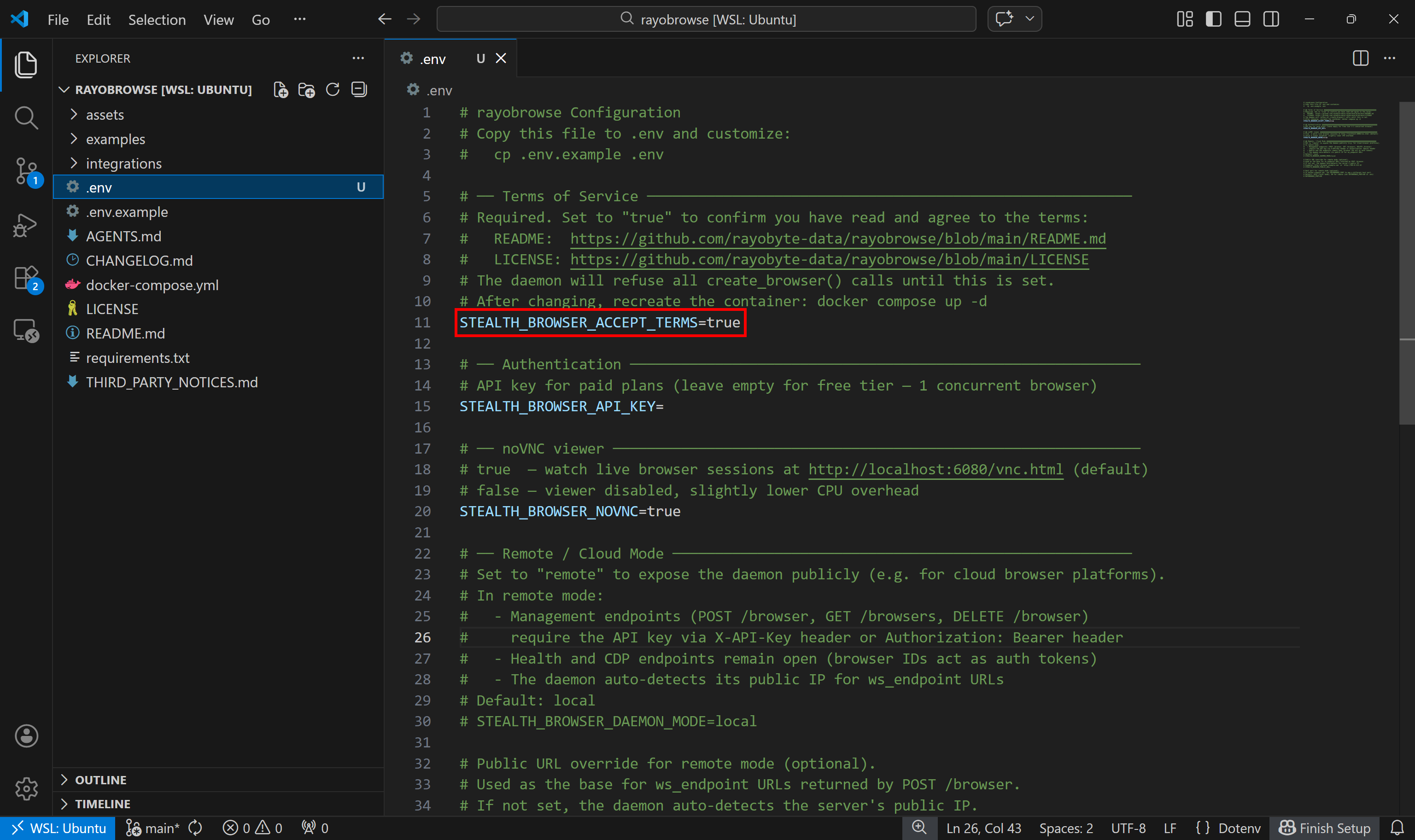
Then open the .env file and make sure it contains:
STEALTH_BROWSER_ACCEPT_TERMS=true
Setting the STEALTH_BROWSER_ACCEPT_TERMS env
This confirms that you accept the project’s LICENSE. Without that setting, the daemon will refuse to create browser sessions.
Step #3: Start the Docker Container
Launch the rayobrowse Docker container:
docker compose up -d
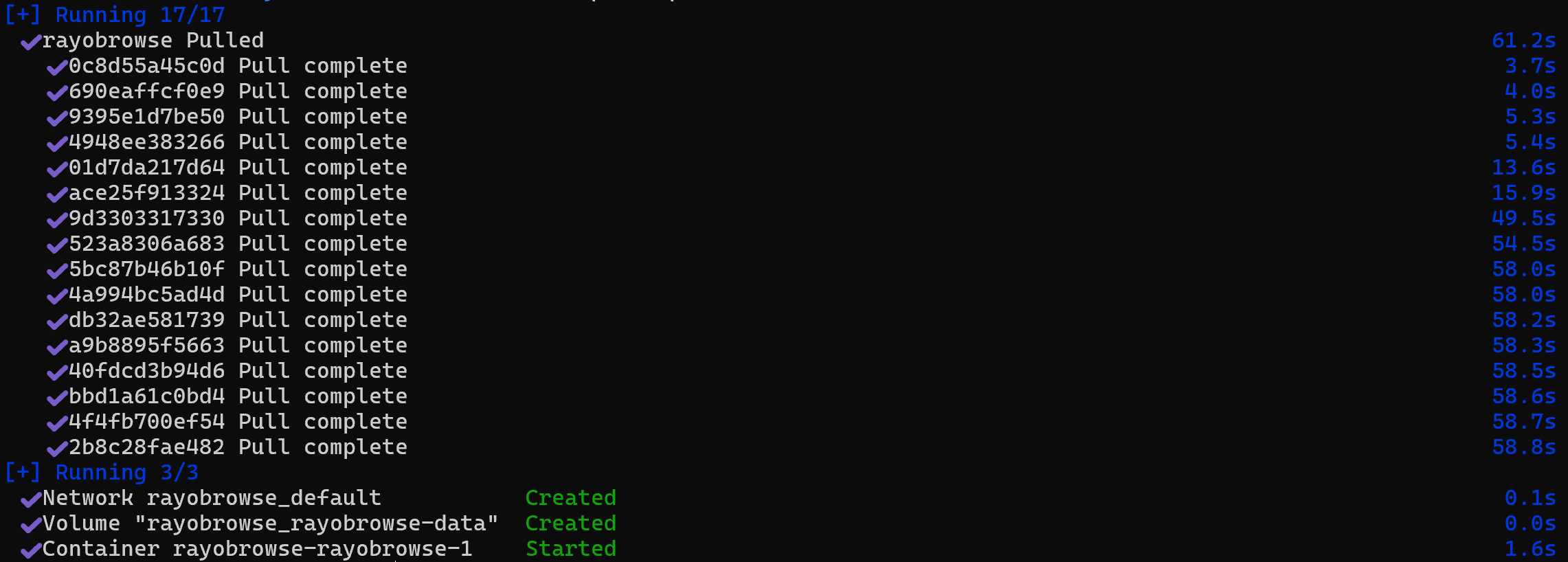
Docker will automatically pull the appropriate image for your system architecture (x86_64 or ARM64). Then, it’ll start the container, as explained earlier.
The output of the “docker compose up -d” command
Step #4: Connect via CDP and Apply the Automation Logic
You can now connect to the running rayobrowse instance through the /connect endpoint using any CDP-compatible client. In this example, I’ll use Playwright with Python:
from playwright.sync_api import sync_playwright

with sync_playwright() as p:
    # Connect to the rayobrowse browser through the CDP WebSocket endpoint
    browser = p.chromium.connect_over_cdp(
        "ws://localhost:9222/connect?headless=false&os=windows"
    )

    # Create a new browser context and page
    page = browser.new_context().new_page()

    # Navigate to the target (sample) page
    page.goto("https://quotes.toscrape.com/")

    # Print the page title to verify the session is working
    print(page.title()) # Output: "Quotes to Scrape"

    # Add your scraping logic here...

    # Close the browser session
    browser.close()
At this point, write your scraping or automation logic, which will run inside the stealth Chromium browser provided by rayobrowse.
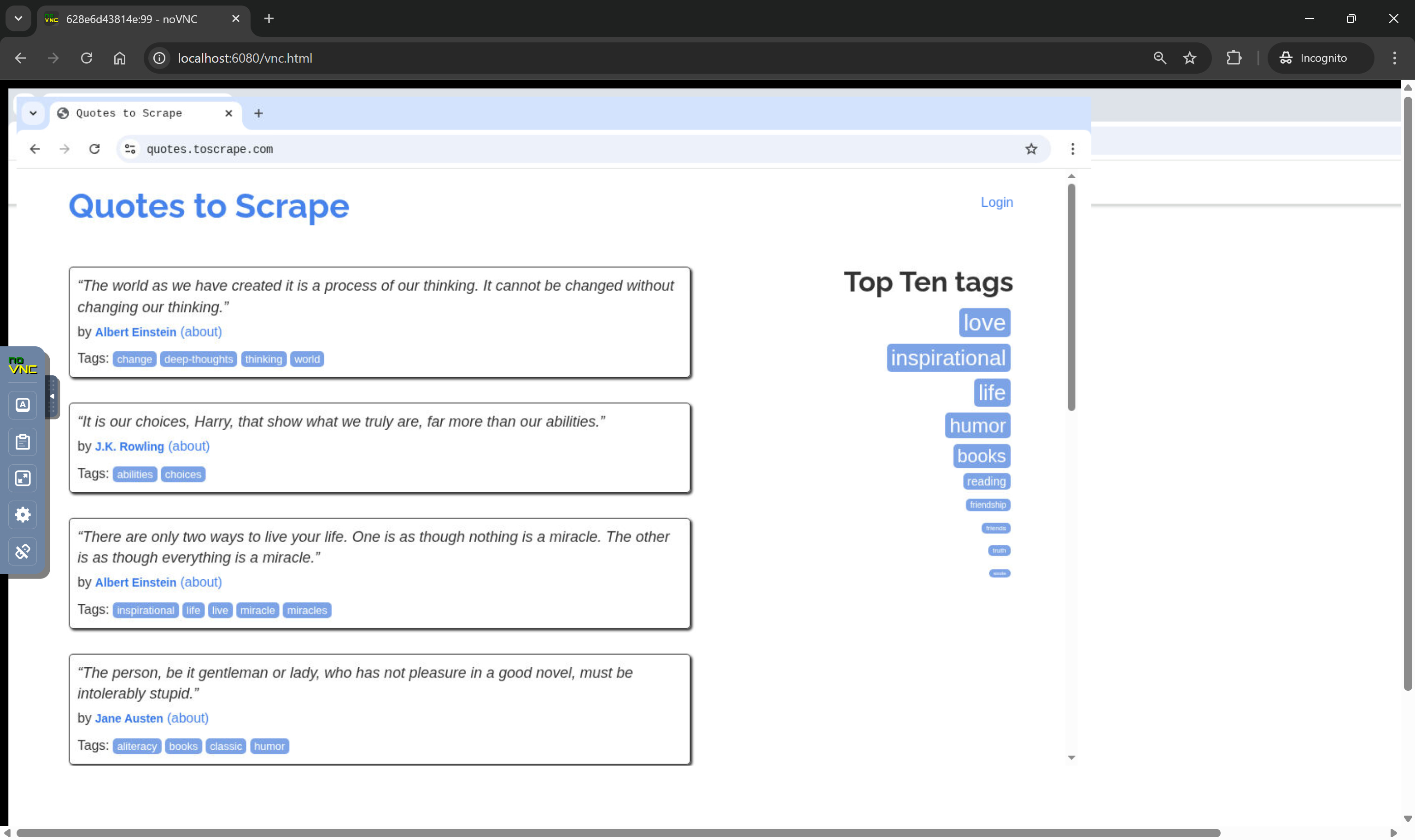
For debugging, you can watch the browser session live through noVNC at http://localhost:6080/vnc.html. While the script is running, you should see a headful Chromium session opening and navigating to the target page specified in the script:
Monitoring the target browser session at http://localhost:6080/vnc.html
As you can tell, the server creates a headful Chromium session (due to the headless=false query parameter) and connects it to the page requested by the script.
Optional: If you want more control over the browser lifecycle, install the Python SDK with:
What matters most for us, developers, is that you can run rayobrowse for free via self‑hosting. In practice, the only real cost comes from proxies, which are necessary for scaling scraping workloads and avoiding IP bans (something that’s standard in most production scraping setups).
The main thing to keep in mind is that rayobrowse is still in beta. Rayobyte already uses it to scrape millions of pages per day, but results can vary depending on the target site and configuration.
Fingerprint coverage is currently strongest for Windows and Android, while macOS and Linux profiles are less mature. In addition, Canvas and WebGL fingerprinting are still evolving, which means some websites may detect the current implementation.
Benchmarks and Final Comment
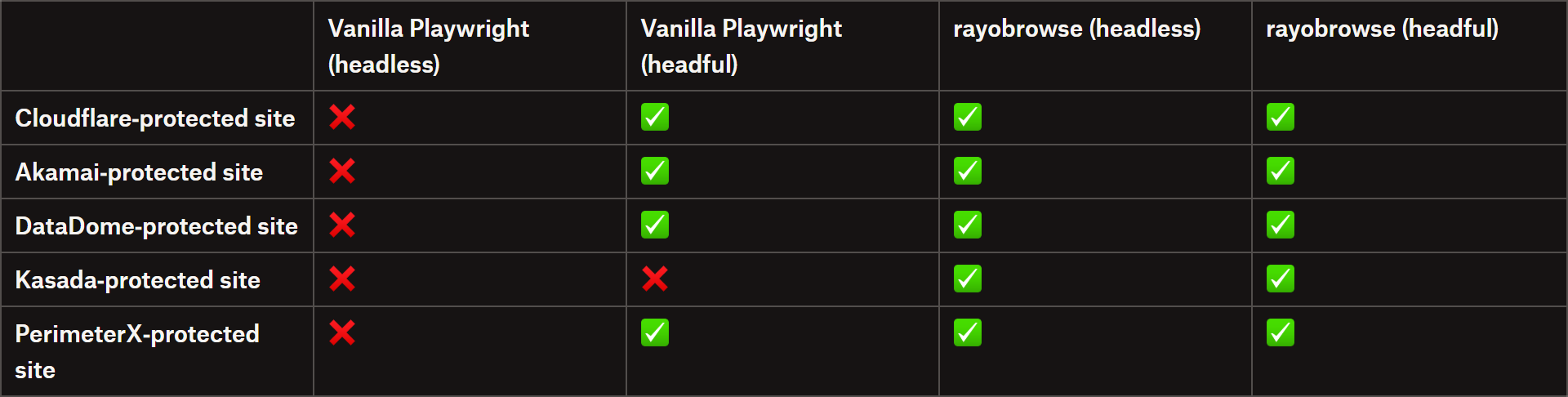
To put rayobrowse to the test, I ran a simple script against a single page for each of the most popular anti‑bot detection systems. These are the results I obtained:
Playwright vs rayobrowse: Benchmark comparison table
Note: These tests were performed on my local machine using my ISP’s IP address.
As you can see, in this simple experiment rayobrowse achieved a 100% success rate, while Playwright failed consistently in headless mode and even struggled in some headful scenarios.
This suggests that the project is definitely worth keeping an eye on, especially thanks to its self‑hosted nature.
To be honest, and this is just my personal opinion as an expert who works in this field, I don’t usually get very excited about projects like this…. In my experience, many libraries of this type either get cracked down on or simply don’t receive the long‑term support they deserve. In this case, however, things are a bit different. The project is closed‑source and backed by a well‑known company in the industry, which makes the expectations for its future understandably much higher!
Here, I covered what the project is about, what it offers, how it works, and how to use it. As always, remember to use rayobrowse only for legal and ethical web scraping. Until next time!
The Web Scraping Club is a reader-supported publication. To receive new posts and support my work, consider becoming a free or paid subscriber.
FAQ
Why is rayobrowse based on Chromium and not Chrome?
rayobrowse is based on Chromium simply because Chrome is closed-source. Plus, tests performed on difficult websites show no meaningful difference in detection rates between Chrome and Chromium. Using Chromium also avoids false positives and reflects the broader ecosystem of Chromium-based browsers like Brave, Edge, and Samsung Internet.
Is rayobrowse open source?
rayobrowse isn’t open-source to prevent anti-bot companies from reverse-engineering it. Similar projects, like Camoufox, were quickly studied and countered once their code became public. Rayobyte decided to keep the project closed-source to help maintain its effectiveness and reliability over the long term.
Can everyone use rayobrowse?
No, not all companies can use rayobrowse. Its license prohibits organizations listed in Rayobyte’s restricted list from using the software. For everyone else, the project is free to download and run locally.
Does rayobrowse support proxy integration?
Yes, Rayobrowse fully supports proxy integration. You can route traffic through any HTTP proxy using the proxy query parameter on the /connect endpoint or via the proxy option exposed by the create_browser() function from the Python SDK. The proxy support includes authentication and rotating proxies.
We at Kameleo have been seeing demand for a Linux + Docker based stealth browser solution for a long time. In our experience, the difficult part is not making it run in Docker, but achieving masking quality that performs well even on the tougher tests highlighted in this article.
We are releasing our own Linux Docker-based solution next week. It took us longer than expected because achieving the level of masking quality we expect from Kameleo is extremely hard. We did not want to ship something before it truly met that standard. Now we feel it is finally at a very strong level, and we believe the quality may be even better.



solid take on this. curious how it plays out long term
We at Kameleo have been seeing demand for a Linux + Docker based stealth browser solution for a long time. In our experience, the difficult part is not making it run in Docker, but achieving masking quality that performs well even on the tougher tests highlighted in this article.
We are releasing our own Linux Docker-based solution next week. It took us longer than expected because achieving the level of masking quality we expect from Kameleo is extremely hard. We did not want to ship something before it truly met that standard. Now we feel it is finally at a very strong level, and we believe the quality may be even better.
More info here: https://developer.kameleo.io/integrations/docker/
It is great to see more serious work happening in this space.