Docker-based stealth browsers are quickly becoming a new standard for automation and scraping infrastructures. The main reason is that they can be integrated directly into CI pipelines or your own fleet of scalable stealth browsers in the cloud.
Kameleo Docker brings Kameleo’s anti-detect browser capabilities into a containerized setup, enabling production-ready automation with real fingerprinting and multi-profile isolation on Linux servers.
In this post, I’ll take a deep look at this solution and walk you through everything you need to know about it. By the end, you’ll understand what Kameleo Docker is, how its stealth browser approach works, how to set it up, and whether it’s actually worth trying.
Before proceeding, let me thank NetNut, the platinum partner of the month. Their set of solutions cover all your needs for scraping.
Kameleo is an anti-detect browser engineered to make browser sessions look like real user devices. Instead of exposing a generic automation fingerprint, it creates realistic browser identities by spoofing hardware, browser, and environment signals such as WebGL, Canvas, fonts, screen resolution, and geolocation.
Kameleo Docker
Kameleo Docker brings that same stealth stack into a self-hosted, containerized deployment model. Rather than relying on a desktop app, you can run Kameleo inside Docker on Linux or Windows servers, CI pipelines, VPSs, or Kubernetes environments.
Playwright, Puppeteer, and Selenium can connect to the container via CDP, meaning you can keep using your existing browser automation logic with minimal changes.
Cloud servers, Kubernetes clusters, CI/CD pipelines, and VPS environments are overwhelmingly Linux-native, making Linux compatibility a practical requirement for automation and scraping teams.
For years, this created a problem for Kameleo users, as the solution only supported Windows and macOS. Because of that, teams wanting to run stealth browsers in production often had to rely on fragile workarounds.
Some deployed Windows virtual machines alongside Linux scraping stacks in AWS. Others used X11-over-SSH tunnels to remotely access browsers running on servers. These setups were difficult to maintain, resource-intensive, and far from ideal for scalable automation.
As explained in the product announcement blog post, Kameleo customers started to ask for a version of Kameleo that could run directly where their automation already lived.
As Barnabas Szenasi, founder and lead engineer at Kameleo, explained when I met him at Prague Crawl 2026:
“We could see from customer messages that a significant slice of our automation-first users were running Linux cloud servers and simply couldn’t use Kameleo at all... At Prague Crawl 2025, Tamas [Kameleo’s CEO] and I heard the same story from industry peers around the world: scraping pipelines were getting harder, and the need to run real browser environments instead of faking HTTP requests was growing fast.”
The Philosophy Behind the Project
From the beginning, Kameleo’s philosophy has been simple: masking quality matters more than shipping quickly.
After all, an anti-detect browser is only useful if it can convincingly behave like a real device. That’s why Kameleo relies on fingerprints sourced from real-world device traffic and continuously tested against modern anti-bot systems.
That same quality-first mindset also shaped the Docker project. According to founder and lead engineer Barnabas Szenasi, Linux support took longer than expected because the goal was never just to make Kameleo run in a container.
The objective was to reach the same masking quality users already expected on Windows and macOS. Shipping a functional but lower-fidelity Linux version would have compromised the product’s core standard.
For your scraping needs, having a reliable proxy provider like Decodo on your side improves the chances of success.
Now that you know why the project exists, let me explain how it works and the engineering behind it.
How Kameleo Docker Works
Kameleo Docker runs inside either:
a Linux-based container (Ubuntu 22.04), or
a Windows-based container (Windows Server Core 2022).
When you pull the image, Docker downloads the correct variant based on your container configuration (Linux containers are the default in most environments, including Docker Desktop). Regardless of the underlying platform, Kameleo exposes the same Local API for browser and profile management as the desktop app.
The process begins when you create a browser profile through the Local API. If you aren’t familiar with that concept, Kameleo profiles are reusable browser environments that bundle a complete browser fingerprint together with persistent browser state, such as cookies, browsing history, local storage, and bookmarks.
Profiles can also include user-defined settings like proxies, browser extensions, and startup preferences. Each profile is tied to a specific browser kernel and can be started, stopped, imported, or exported as needed.
Architecture Overview
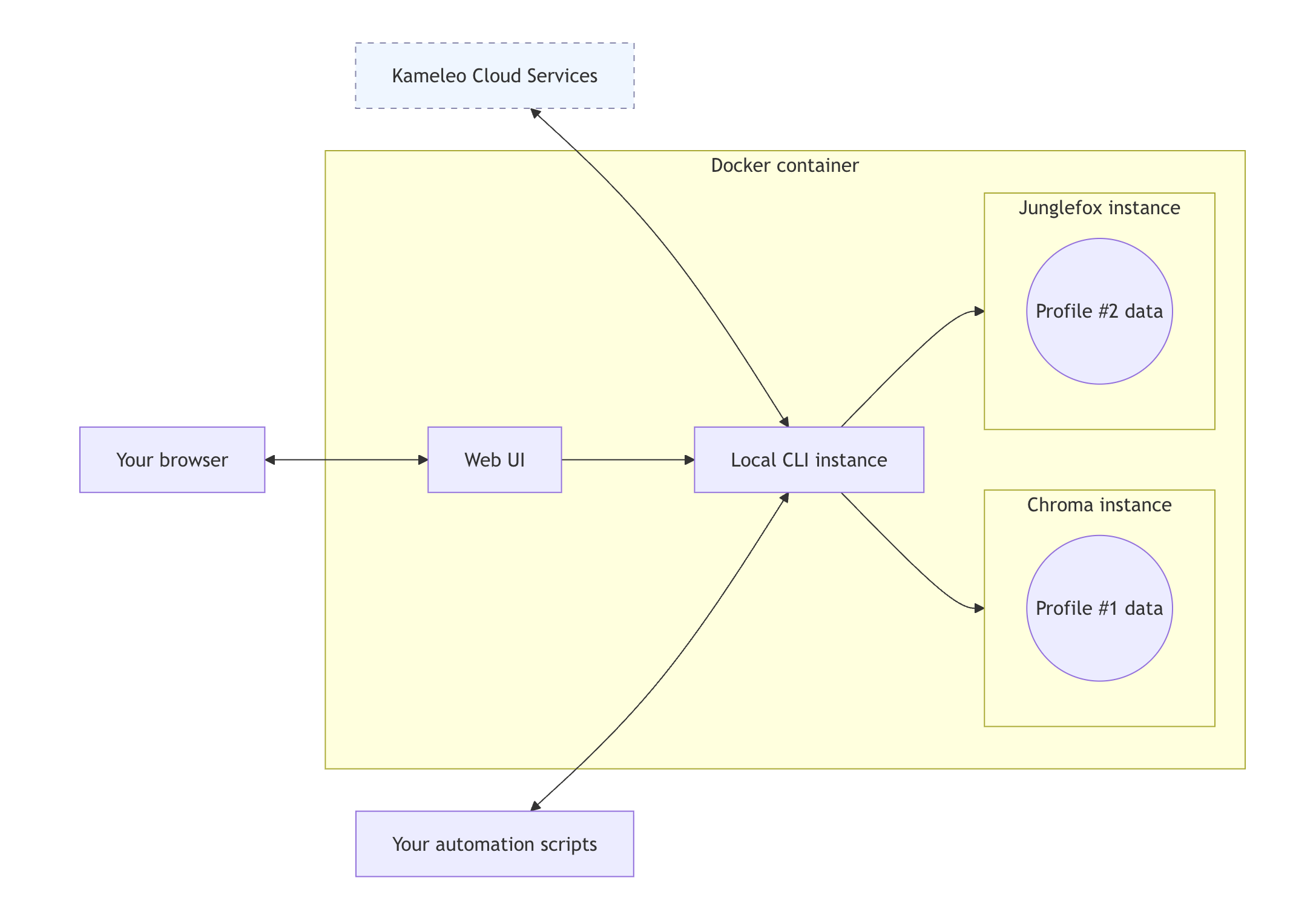
Kameleo Docker’s architecture
Kameleo Docker separates browser execution from automation logic. The container hosts the stealth browsers, fingerprinting systems, and orchestration layer, while your automation scripts run independently on your machine, server, or orchestration platform.
At the center of the architecture is the Local API, exposed on port 5050. This API handles profile creation, fingerprint selection, browser startup, lifecycle management, and more.
These kernels are modified with engine-level masking patches and connected to Kameleo’s continuously updated fingerprint database (more on this later). Since they are exposed through the same API, you can switch between them without making any code changes.
When a profile starts, Kameleo launches a browser session with the configured fingerprint and settings. Playwright and Puppeteer can then connect to the running browser through a WebSocket endpoint via Chrome DevTools Protocol (CDP).
In other words, your automation script stays outside the Docker container. The browser behaves as if it were running locally, while execution, fingerprint masking, and browser management happen entirely inside the Docker container.
Persistent storage is handled through Docker volumes. Profile data, downloaded browser kernels, and runtime state are stored outside the container, allowing environments to be recreated without losing configuration or repeatedly downloading browser components. This makes deployments easier to scale, recover, and reproduce.
Trusted by teams running ad verification, web scraping, SERP tracking, and market research. Ethically sourced proxies, globally accessible, and fairly priced.
Time to explore the main features and capabilities provided by Kameleo Docker. For more information, read the official documentation.
Real Device Fingerprint Masking
Kameleo fingerprints are derived from real-world device traffic, not synthetic templates. Each profile represents a coherent combination of OS, browser, hardware signals, and behavioral characteristics.
All fingerprint surfaces are kept internally consistent, including Canvas, WebGL, audio context, screen resolution, and fonts.
Note: TLS fingerprint spoofing isn’t required, as Kameleo matches the browser kernel version precisely. The TLS stack remains the original, unmodified implementation shipped with the corresponding browser release.
The goal of the project isn’t to spoof everything, but to maintain realism across signals. That’s because overriding too many surfaces increases inconsistency risk, which detection systems can flag. For example, running a macOS fingerprint on a Windows host forces heavy compensation across system-level signals.
Proxy Integration and Geo Consistency
Each Kameleo profile can be assigned a dedicated proxy (including a rotating proxy), allowing IP-level isolation between browser identities.
Now, mismatches between IP geography and browser signals (language, timezone, WebRTC, and system locale) are a common detection vector. To address that, Kameleo provides automatic geo-location matching to align the browser’s settings with the geographic location of the selected proxy IP address.
Multi-Profile Isolation
Kameleo Docker is built around strict profile isolation, as each browser profile runs as a fully independent environment. This separation opens the door to safe multi-accounting (referred to as “account management” in Kameleo terminology). Thanks for this feature, you can operate multiple identities simultaneously without cross-contamination of session data or signals.
Linux-Specific Docker Image Features
Compared to the Windows-based container, the Linux version of Kameleo Docker includes several additional features. These include:
Built-in VNC viewer: Allows you to monitor and interact with live browser sessions. This is especially useful for debugging automation, validating fingerprints, or troubleshooting rendering issues. You can access it through a browser on port 8080 or via native VNC clients such as RealVNC or TigerVNC on port 5900. For security reasons, it’s disabled by default.
Browser-Based Kameleo GUI: A lightweight browser-based GUI on port 80 (reach it at http://localhost:80). Unlike the desktop app, it offers reduced functionality and is primarily intended for quick inspection, basic profile management, and monitoring.
Optional GPU acceleration: The Linux container supports optional GPU acceleration for graphics-heavy workloads such as WebGL or canvas-intensive websites. Intel/AMD GPUs can be mounted through /dev/dri, while NVIDIA GPUs are supported through the NVIDIA Container Toolkit. When no GPU is available, Kameleo falls back to software rendering.
Getting Started With Kameleo Docker: Step-by-Step Guide
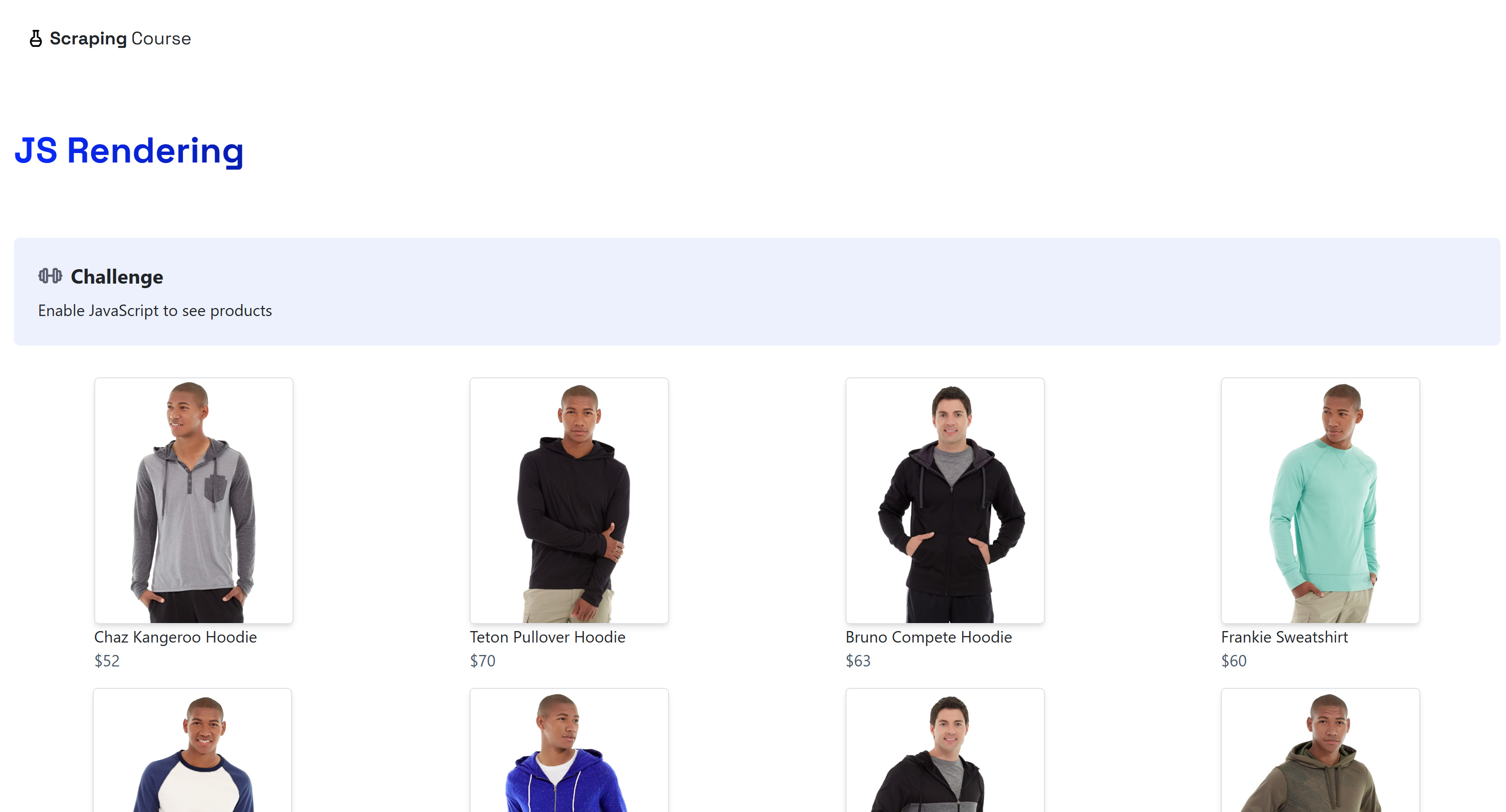
The target Scraping Course “JavaScript Rendering” page
This is a sandbox environment for web scraping that simulates a real-world, JavaScript-rendered ecommerce page. It makes for a great testing target to validate the setup and see how Kameleo Docker behaves in a realistic automation scenario.
Since I’ll show how to use Kameleo Docker with Playwright in Python, to keep things moving, I’ll assume you already have a Python environment set up with Playwright and its dependencies installed.
To follow along with this tutorial section, I also recommend that you have:
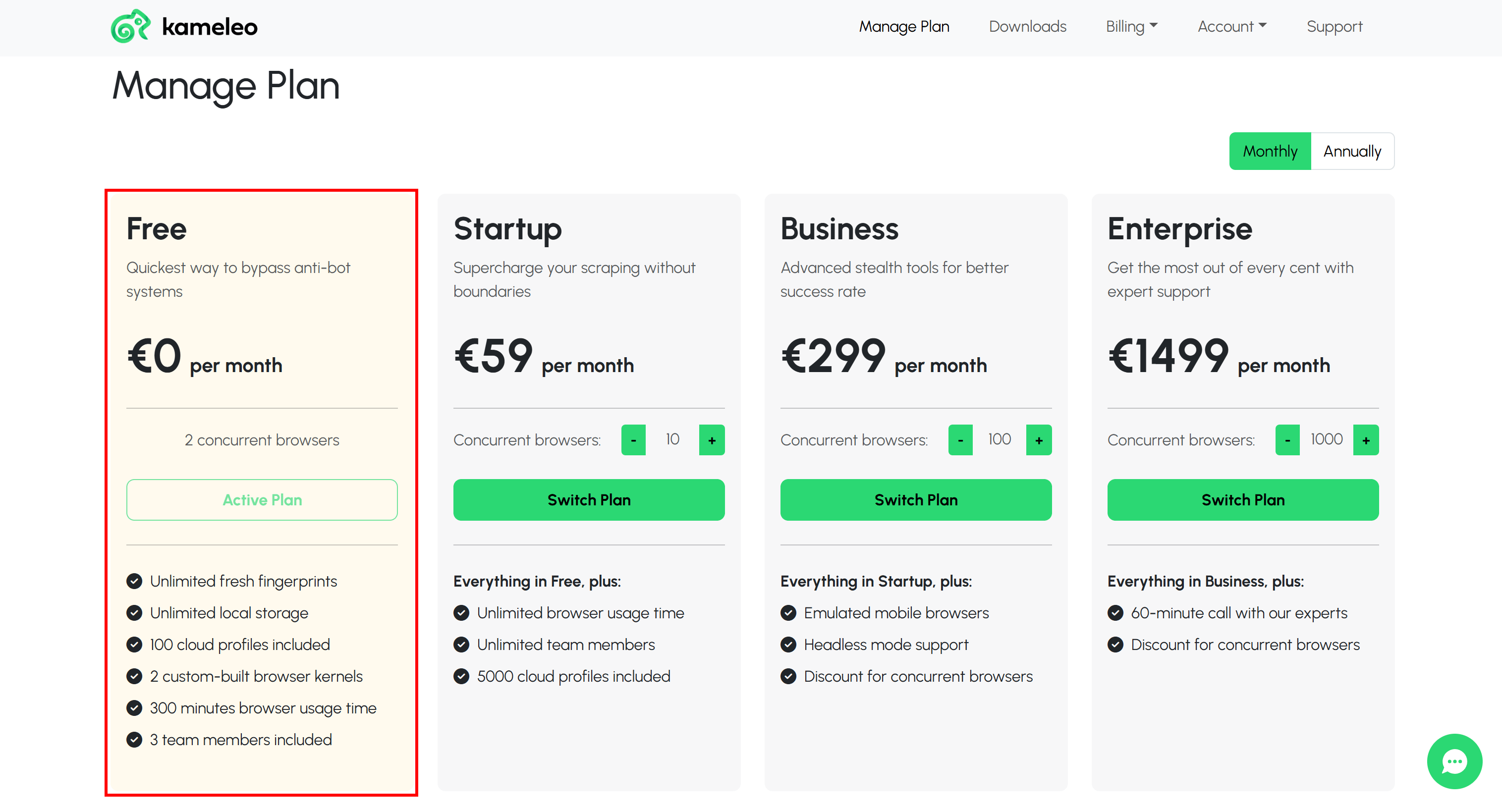
If you haven’t already, start by creating a Kameleo account. Fill out the sign-up form and enter the required information. Once registration is complete, a Free plan will already be activated:
The Free plan
Note that the Free plan is enough to use Kameleo Docker.
Important: Kameleo credentials are required for the container to authenticate successfully, download browser kernels, and start correctly.
Remember that Kameleo ships as a multi-platform Docker image, supporting both Linux-based and Windows-based containers. To download and start the Linux container version of Kameleo, run:
Note 1: If you run this command in PowerShell, replace “\” with the backtick “`” for multi-line commands.
Note 2: To launch the web GUI included in the Linux container of Kameleo Docker, add the -p 80:80 argument to your docker run command.
Here’s what matters in the above command:
--platform linux/amd64 ensures Docker pulls the Linux-based image variant.
--shm-size=2g is required for stable browser execution (the default Docker shared memory of 64MB is too small for browser execution).
-v kameleo-data:/data creates a named volume that persists browser kernels and profiles across restarts.
<YOUR_KAMELEO_PAT> is your Kameleo Personal Access Token (PAT), required to authenticate with your Kameleo account. Note that this argument is optional. You can skip the -e PAT=’<YOUR_KAMELEO_PAT>’ flag entirely if you want to try out Kameleo Docker without an account.
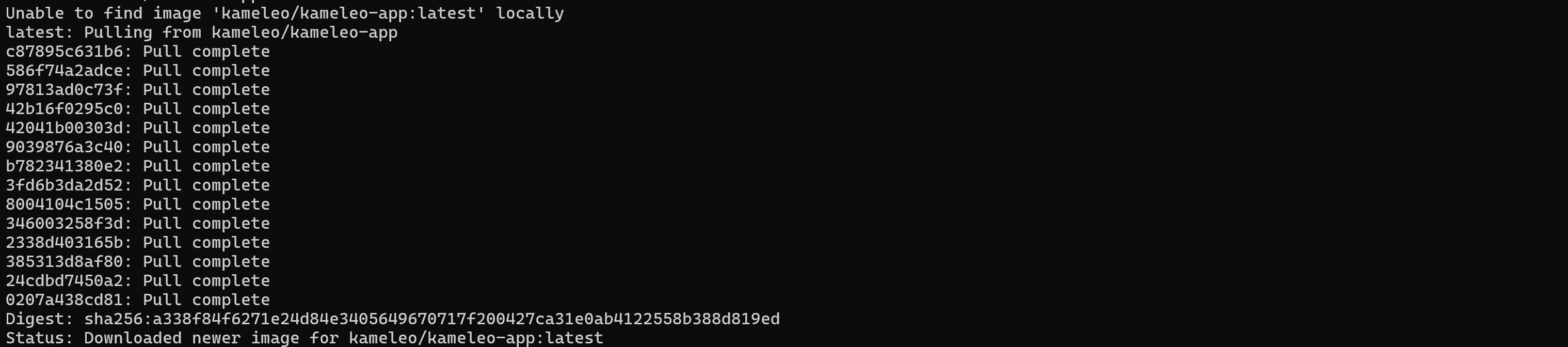
Below’s the output you should get:
Retrieving the Kameleo Docker image
The Kameleo Docker image should now be downloaded and launched on your system. Cool!
Step #3: Verify the Service
Once you run the image, Kameleo Docker will:
Start the Local API on port 5050.
Authenticate using your credentials.
Download required browser kernels (first run only).
The Kameleo Docker image startup logs
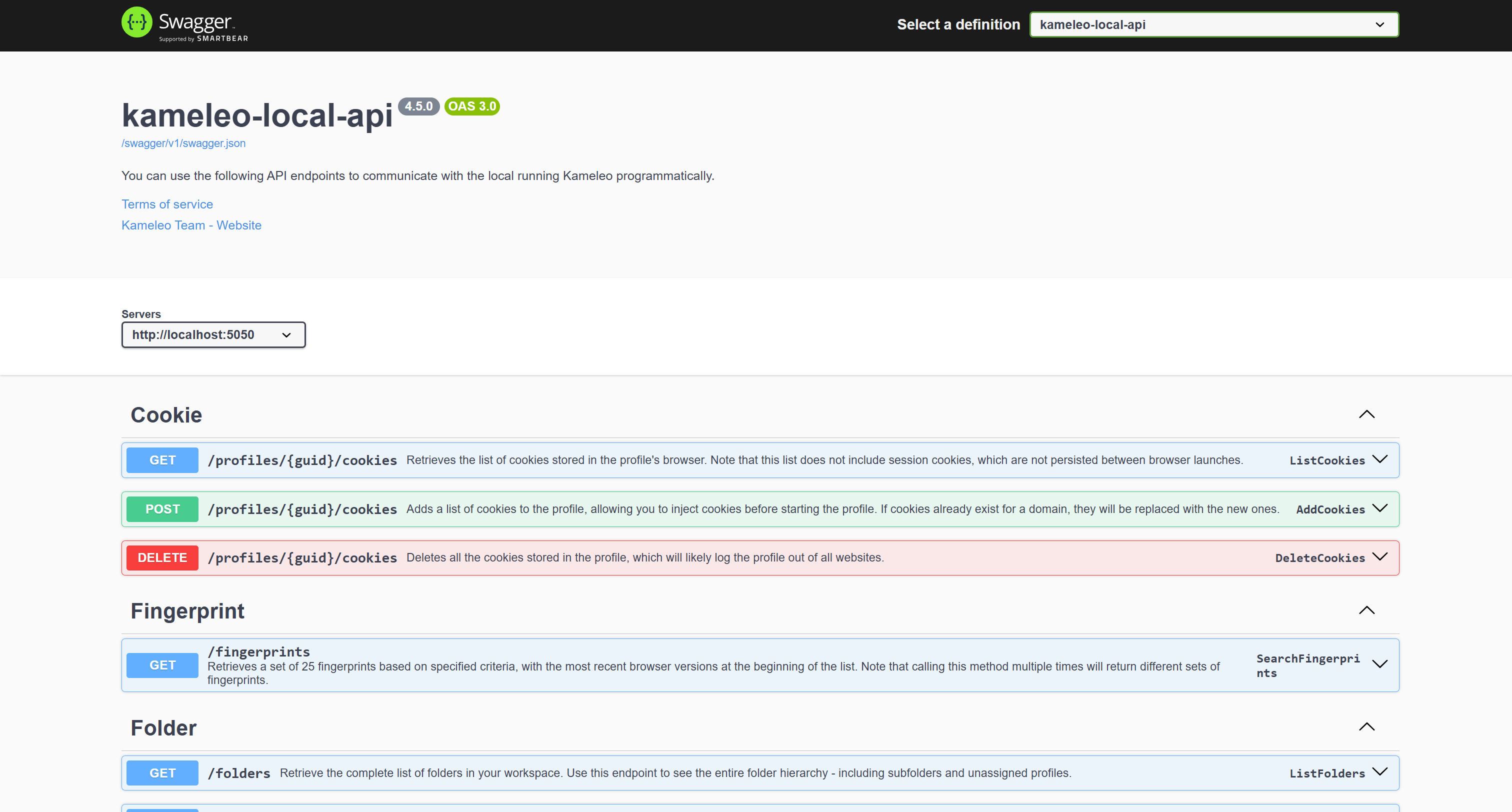
To confirm everything is running correctly, visit the following URL in your browser:
http://localhost:5050/swagger
You should see the Swagger UI for the Kameleo Local API:
The Swagger UI for the Kameleo Local API at “http://localhost:5050/swagger”
You’ll have a local Kameleo instance ready for automation with Playwright, Puppeteer, or Selenium. Great!
Step #4: Download the SDK and Create Your First Profile
Now that Kameleo Docker is running, you can interact with it through the APIs exposed at http://localhost:5050. The next step is to proceed with the usual Kameleo setup by creating a profile.
Assuming you already have a Python environment with Playwright installed,start by installing the Kameleo SDK:
pip install kameleo-local-api-client
Then, in your Playwright script, initialize the Kameleo API client and generate a browser profile:
from kameleo.local_api_client import KameleoLocalApiClient
from kameleo.local_api_client.models import CreateProfileRequest

# Connect to the Kameleo API client
client = KameleoLocalApiClient(endpoint="http://localhost:5050")
# Search for a real-world fingerprint and create a Kameleo profile based on it
fps = client.fingerprint.search_fingerprints(
    device_type="desktop",
    os_family="windows",
    browser_product="chrome",
    browser_version=">145",
)
profile = client.profile.create_profile(
    CreateProfileRequest(fingerprint_id=fps[0].id, name="twsc demo")
)
The above snippet connects the Kameleo API client from the SDK to the local Kameleo Docker APIs. It retrieves a realistic browser fingerprint from the database and creates a persistent browser profile called “twsc demo” based on it. In this case, the fingerprint profile is for a desktop Chrome browser (version >145) running on Windows.
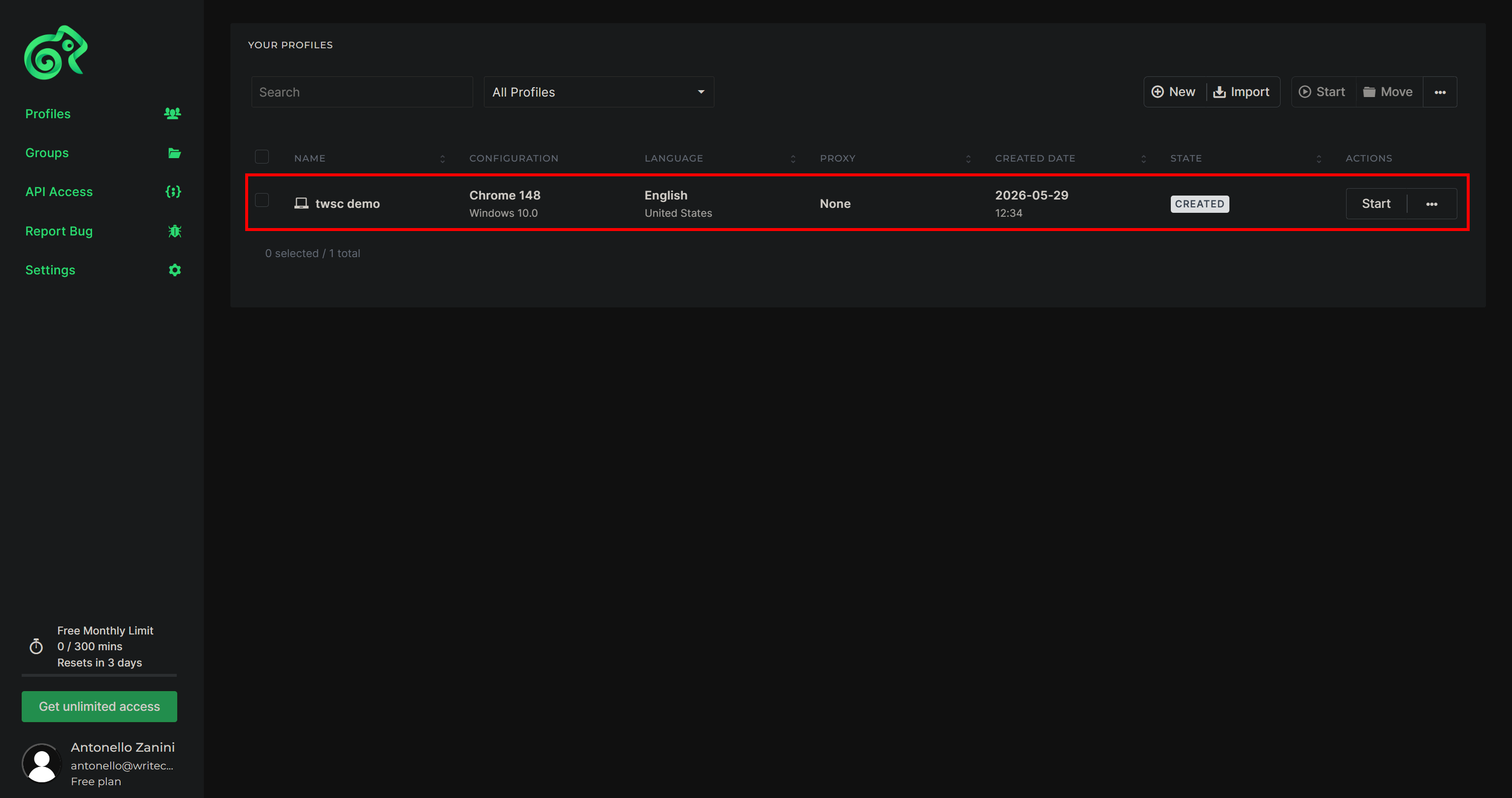
Run the script above. If you started the Linux container of Kameleo Docker while mapping port 80 for the web GUI, then you’ll be able to see the “twsc demo” profile at http://localhost:80:
Note the “twsc demo” profile
Step #5: Connect With Playwright
You can now connect Playwright to the Kameleo profile created above via CDP using the following WebSocket URL:
from playwright.sync_api import sync_playwright

# Kameleo profile creation...

# Connect Playwright to the Kameleo instance based on the configured profile
ws_endpoint = f"ws://localhost:5050/playwright/{profile.id}"
with sync_playwright() as playwright:
    browser = playwright.chromium.connect_over_cdp(endpoint_url=ws_endpoint, timeout=90_000)

    # Regular Playwright automation logic...
Wonderful! Playwright is attached to the browser session managed by Kameleo Docker. You can now automate it using standard Playwright APIs as if it were a regular local Chromium instance.
Step #6: Implement the Automation Logic
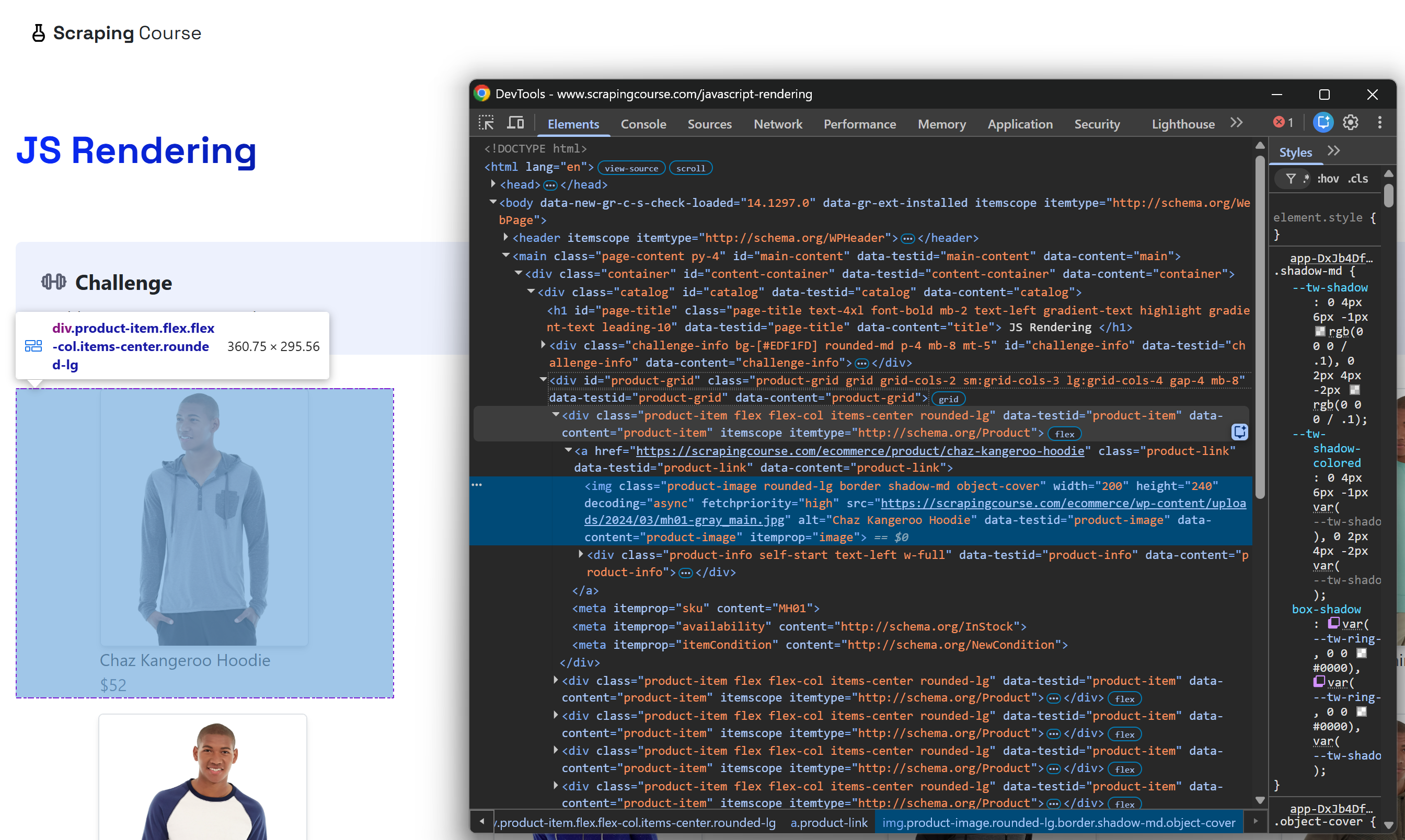
To achieve the scraping goal, begin by inspecting the page to study its DOM structure:
Inspecting a product on the page
Then, apply the following Playwright logic (connected to a Kameleo profile) to automate scraping on the JavaScript-rendered page:
# Connect Playwright to the Kameleo instance based on the configured profile
ws_endpoint = f'ws://localhost:5050/playwright/{profile.id}'
with sync_playwright() as playwright:
    browser = playwright.chromium.connect_over_cdp(endpoint_url=ws_endpoint, timeout=90_000)

    # Open a new page
    context = browser.contexts[0]
    page = context.new_page()

    # Visit target site
    page.goto("https://www.scrapingcourse.com/javascript-rendering")

    # Where to store the scraped data
    products = []

    # Wait for products to render
    page.wait_for_selector(".product-item")

    # Locate all product items
    product_elements = page.locator(".product-item")

    for i in range(product_elements.count()):
        # Select the nth product
        product_element = product_elements.nth(i)

        # Extract the product data
        name = product_element.locator(".product-name").inner_text()
        price = product_element.locator(".product-price").inner_text()
        image = product_element.locator("img.product-image").get_attribute("src")
        link = product_element.locator("a.product-link").get_attribute("href")

        # Populate a product object with the scraped data
        product = {
            "name": name,
            "price": price,
            "image": image,
            "url": link
        }
        # Append it to the products list
        products.append(product)
The above snippet instructs the controlled browser to visit the target page, waits for product elements to load, then iterates through each product DOM node to extract structured fields (name, price, image, URL) and stores them in a Python list for downstream processing.
The Kameleo-powered automation script is almost complete. Only one step remains!
Step #7: Stop the Kameleo Profile
Normally, in a Playwright scenario, you would need to call browser.close() to terminate the browser session and release its resources.
In Kameleo, that’s not required. Instead, you only need to call:
The above line of code sends a close command to the browser via CDP. Once the browser actually stops, the Kameleo profile is terminated, too. This ensures that all resources associated with both the browser and the running profile are properly released.
Step #8: Run the Script
The final Playwright automation script, connecting via CDP to the stealth browser instance exposed by Kameleo Docker, will contain:
# pip install playwright kameleo-local-api-client

from kameleo.local_api_client import KameleoLocalApiClient
from kameleo.local_api_client.models import CreateProfileRequest
from playwright.sync_api import sync_playwright

# Connect to the Kameleo API client
client = KameleoLocalApiClient(endpoint="http://localhost:5050")
# Search for a real-world fingerprint and create a Kameleo profile based on it
fps = client.fingerprint.search_fingerprints(
    device_type="desktop",
    os_family="windows",
    browser_product="chrome",
    browser_version=">145",
)
profile = client.profile.create_profile(
    CreateProfileRequest(fingerprint_id=fps[0].id, name="twsc demo")
)

# Connect Playwright to the Kameleo instance based on the configured profile
ws_endpoint = f'ws://localhost:5050/playwright/{profile.id}'
with sync_playwright() as playwright:
    browser = playwright.chromium.connect_over_cdp(endpoint_url=ws_endpoint, timeout=90_000)

    # Open a new page
    context = browser.contexts[0]
    page = context.new_page()

    # Visit target site
    page.goto("https://www.scrapingcourse.com/javascript-rendering")

    # Where to store the scraped data
    products = []

    # Wait for products to render
    page.wait_for_selector(".product-item")

    # Locate all product items
    product_elements = page.locator(".product-item")

    for i in range(product_elements.count()):
        # Select the nth product
        product_element = product_elements.nth(i)

        # Extract the product data
        name = product_element.locator(".product-name").inner_text()
        price = product_element.locator(".product-price").inner_text()
        image = product_element.locator("img.product-image").get_attribute("src")
        link = product_element.locator("a.product-link").get_attribute("href")

        # Populate a product object with the scraped data
        product = {
            "name": name,
            "price": price,
            "image": image,
            "url": link
        }
        # Append it to the products list
        products.append(product)

    # Print the scraped products
    for product in products:
        print(product)

# Stop the Kameleo profile
client.profile.stop_profile(profile_id=profile.id)
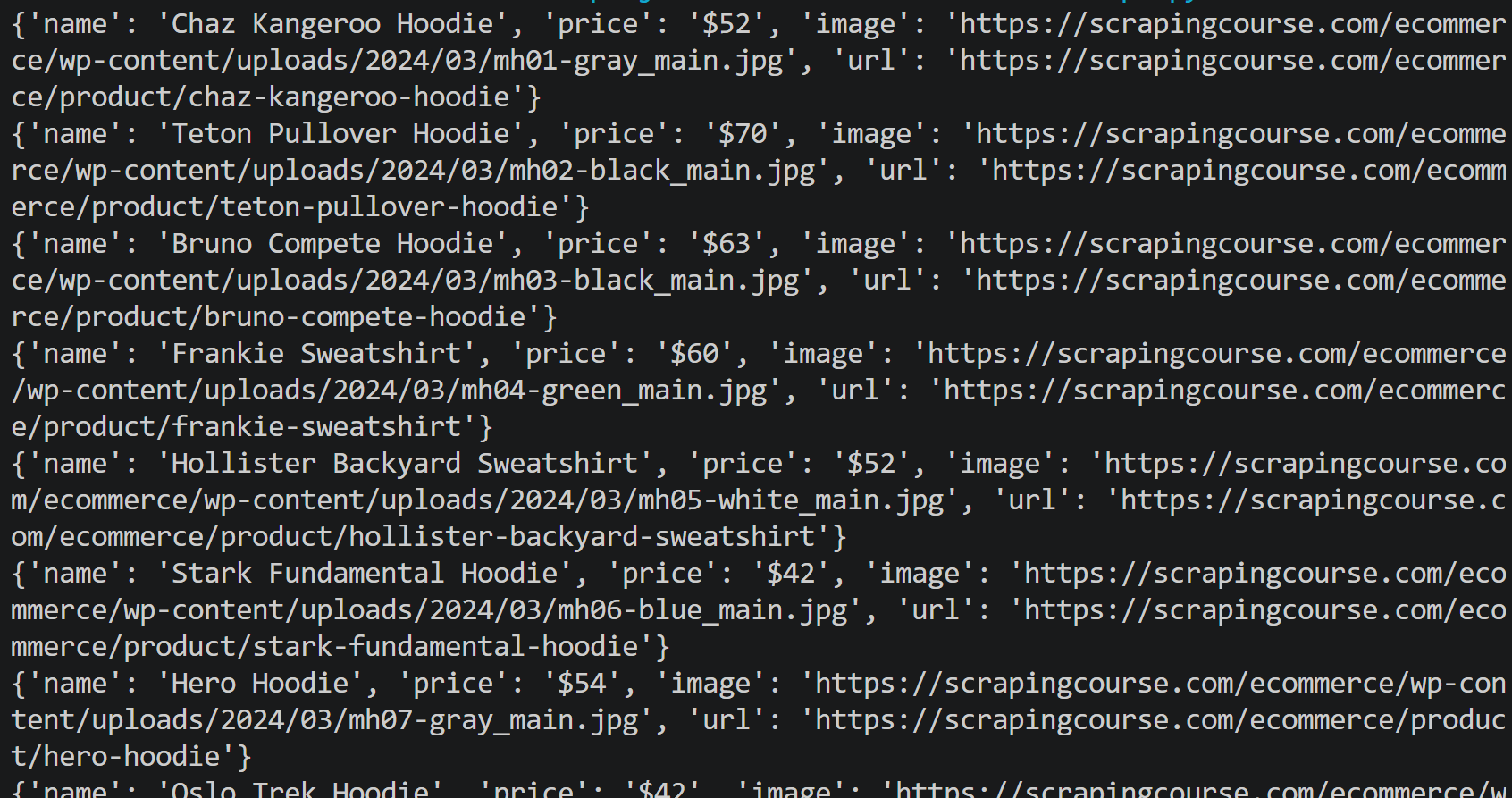
Execute the script, and you should see output similar to this:
The output produced by the automation script
Notice how the script successfully scraped product data from the JavaScript-rendered page.
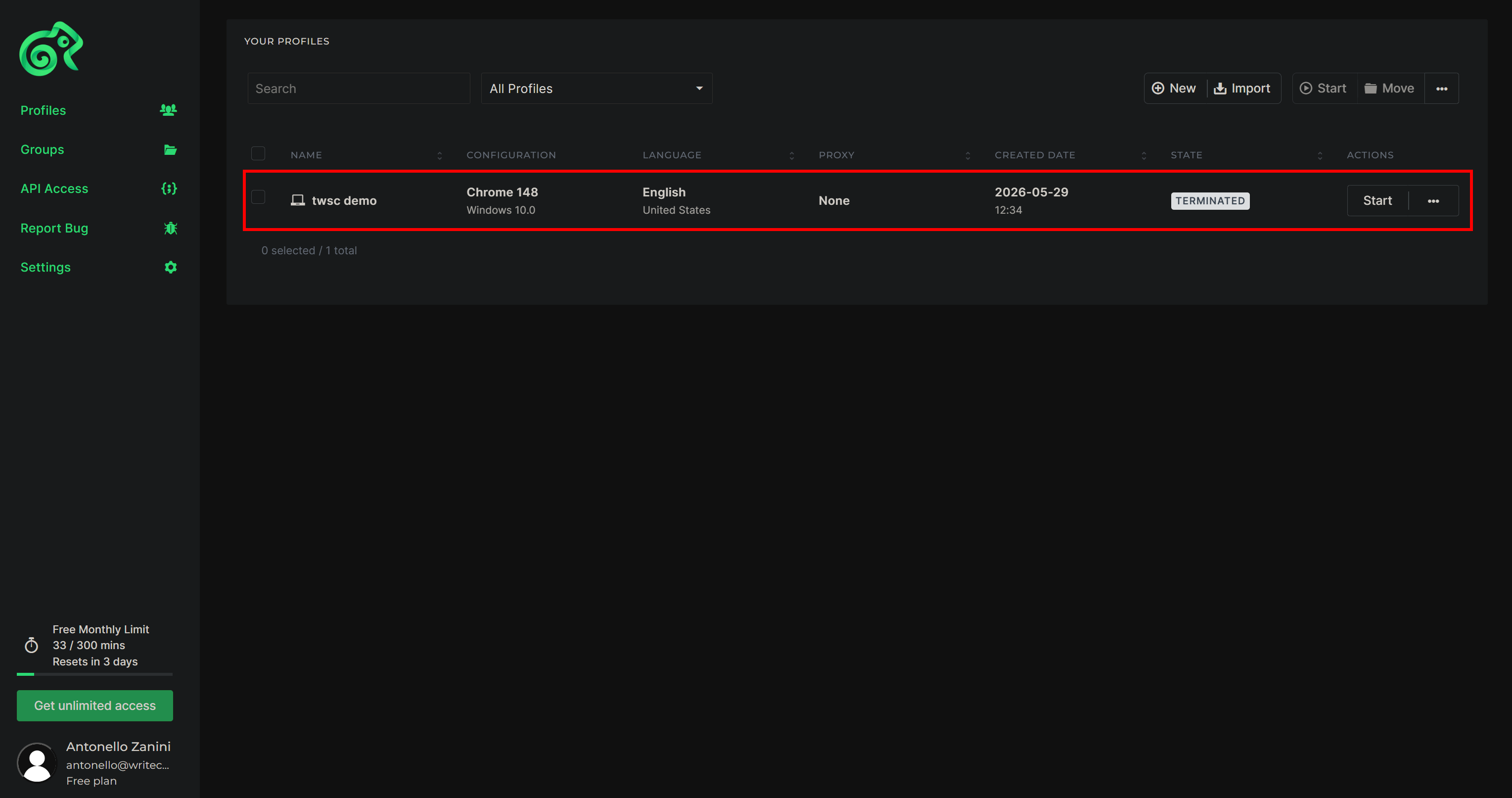
Once execution completes, open the Kameleo web GUI, and you’ll notice that the “twsc demo” profile is now marked as “TERMINATED”:
Note the updated status of the Kameleo profile
That doesn’t mean the profile is gone forever. Quite the opposite!
Kameleo profiles are reusable, meaning you can retrieve and start them again later to continue the browsing session with the same fingerprint and persisted state. I’ll cover exactly how to do that in a dedicated FAQ.
Mission complete! You just learned how to use Kameleo Docker for Playwright automation. With very similar logic, you can automate Puppeteer, Selenium, or any other CDP-compatible solution, in both Python and JavaScript.
Pricing Model
Kameleo Docker is included across all plans at no additional cost. You get the same core limits (concurrent browsers, number of profiles, and browser usage time) regardless of whether you run the desktop app or the containerized version. So, take a look at the official pricing page for more information.
Anti-Bot Performance Benchmarks
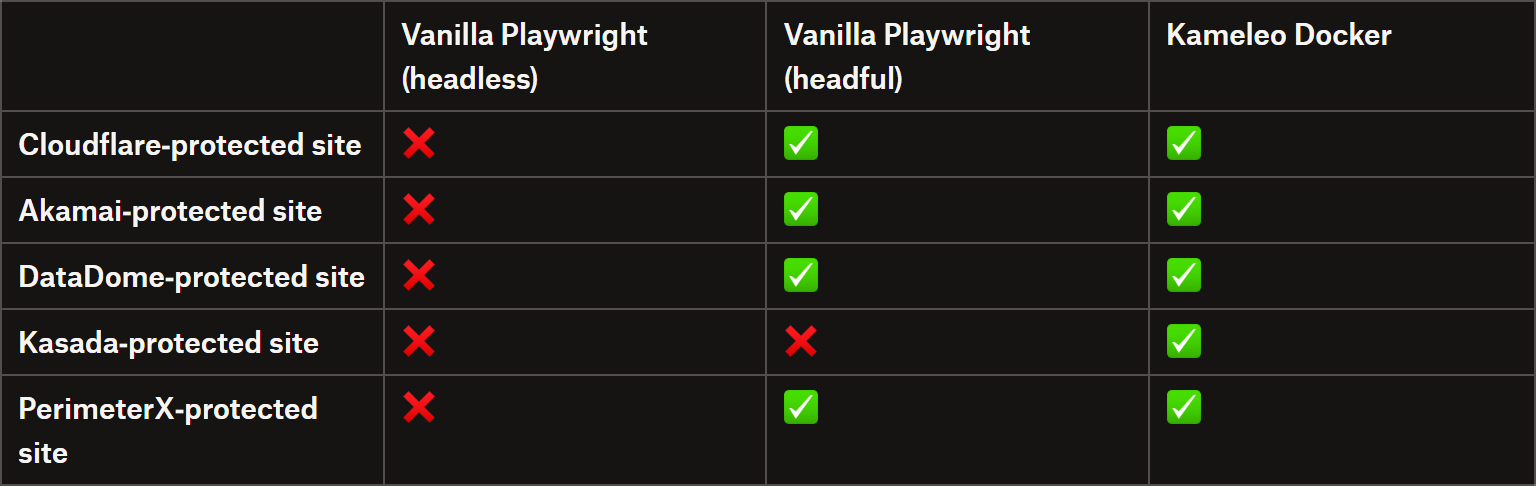
To test Kameleo Docker, I ran a simple script against one page protected by each major anti-bot detection system. The results are shown below:
Vanilla Playwright (headless) vs vanilla Playwright (headful) vs Kameleo Docker
Note: All tests were performed locally using my ISP’s residential IP address.
As shown above, in this basic experiment, Kameleo Docker achieved a 100% success rate. In contrast, Playwright consistently failed in headless mode and, in some cases, also struggled in headful mode.
What stood out when I met Barnabas at Prague Crawl 2026 (see you next year 😉) was the clear passion the team has for the project, along with their focus on quality and continuous improvement.
At the same time, when testing new products, especially technical and complex ones like Kameleo Docker, you usually stumble across bugs or unexpected behavior. I can confidently say that this wasn’t the case at all here. Everything ran smoothly from the beginning, and I didn’t encounter any issues…
On top of that, the benchmark results are promising, and I didn’t notice any significant performance lag. Thus, my honest takeaway is simple: if you’re looking for a production-ready, containerized stealth browser, or you’re simply passionate about automation and scraping, consider giving Kameleo Docker a try!
In this article, I covered what the project is about, what it offers, how it works, and how to use it. As always, remember to use Kameleo Docker only for legal and ethical web scraping and automation. Until next time!
The Web Scraping Club is a reader-supported publication. To receive new posts and support my work, consider becoming a free or paid subscriber.
FAQ
Is Kameleo Docker different from the desktop app?
Kameleo Docker differs from the desktop app mainly in deployment. Instead of a local GUI, it runs as a containerized service that runs on both Linux and Windows servers. Feature parity is largely preserved, including profiles, fingerprinting, and browser engines.
Can I reuse already created profiles in Kameleo Docker?
Yes! Profiles can be reused by retrieving the full list of profiles, filtering by name (or ID, if you know it), and then starting the desired profile. For example, to reuse the “twsc demo” profile, write:
from kameleo.local_api_client import KameleoLocalApiClient
from kameleo.local_api_client.models import ProfileLifetimeState

# Connect to the Kameleo API client
client = KameleoLocalApiClient(endpoint="http://localhost:5050")

# Fetch all available profiles
profiles = client.profile.list_profiles()

# Find the profile with the specific name
target_name = "twsc demo"
profile = next((p for p in profiles if p.name == target_name), None)

# Check if the profile was found
if profile:
    # Start the existing profile if it isn't already running
    if profile.status.lifetime_state != ProfileLifetimeState.RUNNING:
      client.profile.start_profile(profile.id)
Can I use Kameleo Docker in my CI/CD?
Kameleo Docker fits naturally into CI/CD pipelines by running as a disposable, reproducible container in build or test stages. You can spin up browsers on demand, run automated flows, and tear them down after execution. Configuration is typically handled via Docker Compose.
Can Kameleo Docker scale to thousands of browsers?
Kameleo Docker supports horizontal scaling through standard orchestration tools. You can run multiple containers across clusters using Kubernetes or AWS ECS, each managing independent browser instances.
How Does Firefox Automation Work in Kameleo Docker?
Kameleo Docker supports Firefox-based automation through the Junglefox engine. Because Playwright cannot connect directly to Firefox-based sessions, Kameleo provides a pw-bridge helper that acts as a compatibility layer. This component translates Playwright connections into the correct browser session, allowing standard automation scripts to run unchanged while still using Firefox-based fingerprint profiles.
Did you like this article? Share it with someone who might find it useful and get a discount on paid plans.
thank you for the great wrap up. Please note that in Kameleo 5.0 (released last week), there are some breaking changes:
In your article you mention "A Kameleo account with valid credentials." is required for testing. It is not true anymore.
Also where you showcase the command on how to start the container you still mention that the email and password credentials must be added as env vars. Please note that in Kameleo 5.0 it is changed. You can actually start it without authentication to try out Kameleo. If you would like to run with your authenticated user you will need to pass a Personal Access Token (PAT). Mentioned here: https://developer.kameleo.io/integrations/docker/#1-run-the-container





Hi Antonello,
thank you for the great wrap up. Please note that in Kameleo 5.0 (released last week), there are some breaking changes:
In your article you mention "A Kameleo account with valid credentials." is required for testing. It is not true anymore.
Also where you showcase the command on how to start the container you still mention that the email and password credentials must be added as env vars. Please note that in Kameleo 5.0 it is changed. You can actually start it without authentication to try out Kameleo. If you would like to run with your authenticated user you will need to pass a Personal Access Token (PAT). Mentioned here: https://developer.kameleo.io/integrations/docker/#1-run-the-container
---
docker run --platform linux/amd64 --shm-size=2g -p 5050:5050 -e PAT="your-pat" -v kameleo-data:/data kameleo/kameleo-app:latest
---
So could you please update the article?