Most LLMs understand Markdown exceptionally well. Consequently, when building AI-powered data pipelines, it makes sense to convert all input data into Markdown first. This way, scraped web pages, documents, and other content can then be processed in a consistent format.
That’s where the MarkItDown Python library comes into play!
Here, I’ll show you everything you need to know about MarkItDown, from installation to practical examples, so you can convert HTML pages, PDFs, Word documents, Excel spreadsheets, and many other data sources into LLM-ready Markdown.
Why the Markdown Data Format Is More Relevant Than Ever
As I covered in a recent post, AI-ready web scrapers, RAG pipelines, and agent frameworks all have one thing in common: they rely heavily on Markdown!
That’s no coincidence... Mainstream LLMs (including OpenAI’s latest models) natively “speak” Markdown and often generate Markdown-formatted responses without being prompted.
Why? Because Markdown strikes the perfect balance between plain text and structured documents. It preserves headings, lists, tables, links, code blocks, and other semantic elements without the overhead and noise of HTML.
As a result, LLMs can understand and process Markdown efficiently while consuming far fewer tokens. This translates directly into lower inference costs and leaves more of the context window available for meaningful content.
In my experience (and as I demonstrated in a benchmark I conducted for Bright Data), Markdown has become the natural format for feeding documents, especially content extracted from the web, into LLMs.
For your scraping needs, having a reliable proxy provider like Decodo on your side improves the chances of success.
Why Markdown Conversion Matters in Web Scraping Pipelines
Web data is rarely the final destination. Quite the opposite, scraped content generally represents the starting point of a larger data analysis pipeline, where the goal is to extract insights, enrich datasets, or power downstream applications.
In these workflows, the information you need tends to go beyond traditional web pages. PDFs, Word documents, videos, presentations, and other files can provide additional context required for accurate analysis and processing. These resources may come from the web and be collected during scraping, or they may be added later.
Regardless of the original format, data is increasingly processed by AI systems. Since LLMs naturally work well with Markdown, converting different sources into a clean, structured Markdown representation can greatly simplify your data pipelines.
That’s why you need a multi-format Markdown conversion library in your toolkit, such as MarkItDown!
The new anti-bot solution - Toughest walls, lowest price. Claim your free 10 000 requests with coupon code WSCLUB
Let me now introduce you to MarkItDown, one of the most popular libraries for converting multiple input formats into Markdown.
What Is MarkItDown?
MarkItDown is an open-source Python library for converting a wide range of documents and other data sources into Markdown. The project is developed and maintained by Microsoft.
It’s quickly become one of the most popular tools in its category (more on this later in the post), with over 165k GitHub stars, over 12 million monthly downloads, and a thriving community.
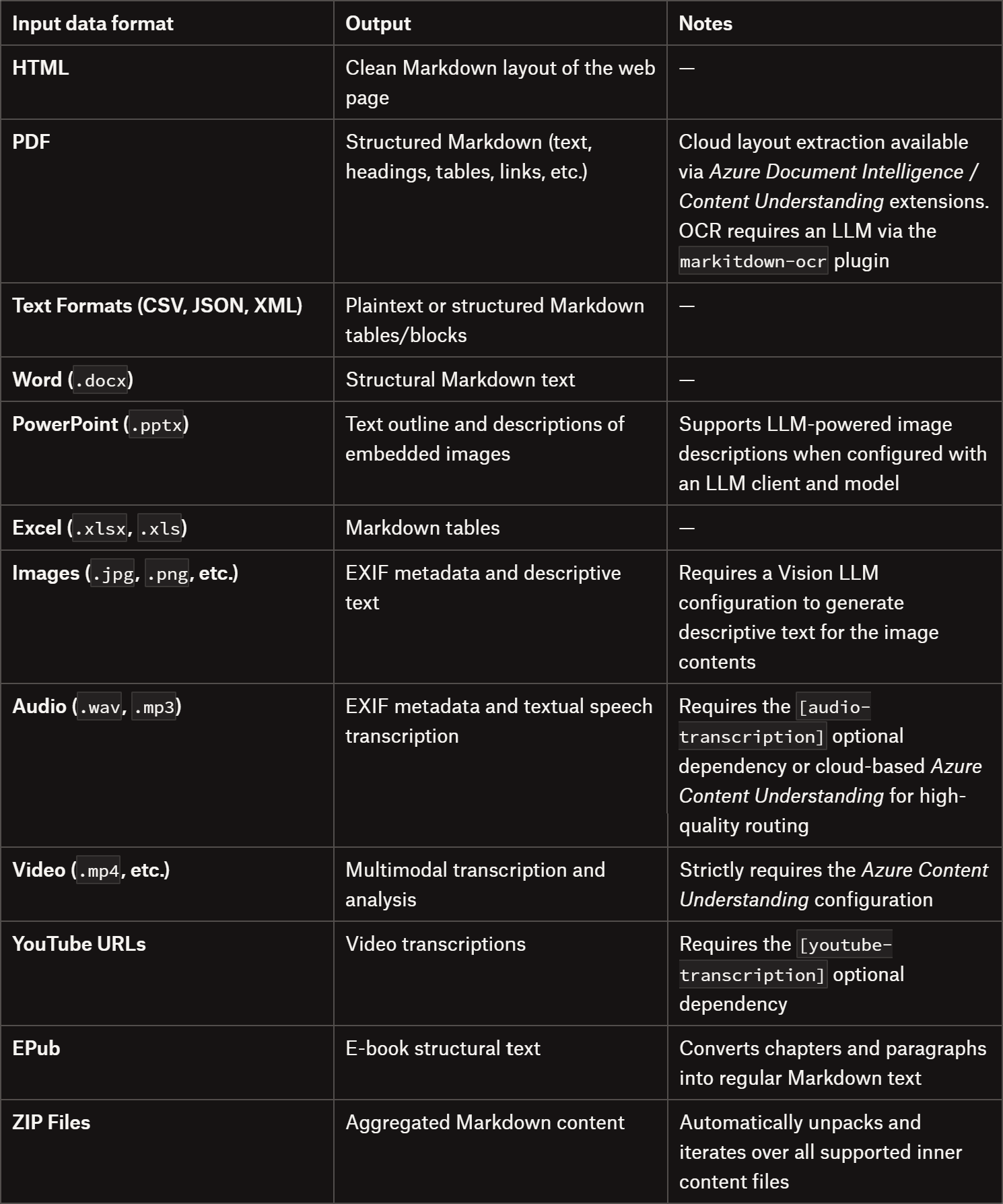
MarkItDown supports dozens of input formats, ranging from Office documents and PDFs to images, audio files, web pages, YouTube videos, and structured data formats such as JSON, XML, and CSV.
Key Features
The main capabilities supported by MarkItDown are:
Broad format support: Converts dozens of input formats, including PDFs, Office documents, HTML, images, audio, EPUBs, ZIP archives, YouTube URLs, and structured data files.
Python API: Offers a clean, developer-friendly API for integrating document conversion into Python applications.
Native CLI: Includes a rich CLI for converting files directly from the terminal, making it ideal for scripting, batch processing, and DevOps workflows.
Plugin architecture: Supports third-party plugins, allowing the community to extend the library with custom converters and additional processing features.
AI-powered processing: Integrates with LLMs to generate image descriptions, perform OCR, and transcribe audio, enriching the resulting Markdown.
Flexible dependency management: Lets you install only the converters you need, reducing dependencies and keeping deployments lightweight.
MCP server support: Provides a lightweight Model Context Protocol server that allows AI agents to call MarkItDown as a tool.
Time to explore some practical examples of converting different input data formats into Markdown.
HTML Document to Markdown
Suppose you have an HTML page stored locally (e.g., as part of an offline web scraping procedure). You can convert it to Markdown using the MarkItDown CLI:
markitdown example.html -o example.md
Alternatively, you can achieve the same result via the Python API:
from markitdown import MarkItDown

md = MarkItDown()
result = md.convert("example.html")

with open("example.md", "w", encoding="utf-8") as f:
    f.write(result.text_content)
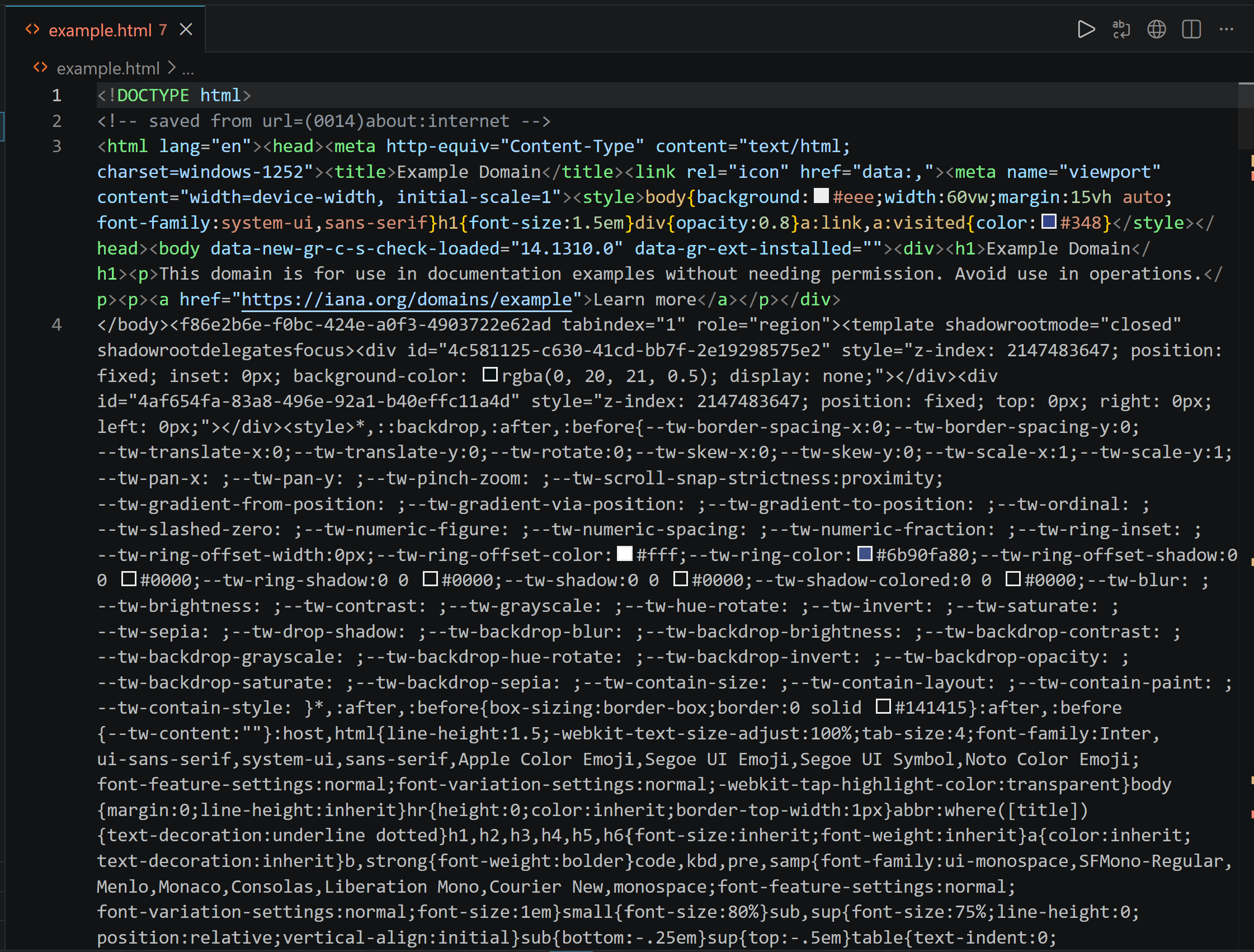
Now, assume the input is the following HTML page (i.e., the homepage from example.com):
The input example.html page
The resulting example.md file will contain:
The resulting example.md Markdown document
Notice how MarkItDown focuses on the meaningful HTML content, ignoring tags like <style>.
The library extracts the relevant elements and converts them into a structured Markdown representation, keeping important information such as headings, links, and text formatting while removing unnecessary HTML overhead.
Web Page to Markdown
A particularly useful feature for web scraping workflows is that MarkItDown can also fetch and convert web pages directly from their URLs, eliminating the need to manually save the HTML first.
Just pass the URL of the target page directly to the MarkItDown CLI:
markitdown 'https://example.com' -o example.md
Or to its Python API:
from markitdown import MarkItDown

md = MarkItDown()
result = md.convert("https://example.com")

with open("example.md", "w", encoding="utf-8") as f:
    f.write(result.text_content)
Under the hood, MarkItDown performs an HTTP GET request to the specified URL using Requests, retrieves the page HTML, and converts the resulting content into Markdown. As usual, keep in mind that the request may fail if the target website uses anti-bot protections.
The output will be the same example.md Markdown file shown in the previous example.
Many websites store valuable information in downloadable PDF files (e.g., shopping flyers, business reports, whitepapers, product documentation, etc.).
While you can send these files directly to an AI model, doing so often consumes unnecessary context and tokens because PDFs may contain complex layouts and additional formatting overhead.
MarkItDown converts PDFs into clean Markdown while preserving important elements such as headings, document structure, lists, and tables, making the content easier for LLMs to process.
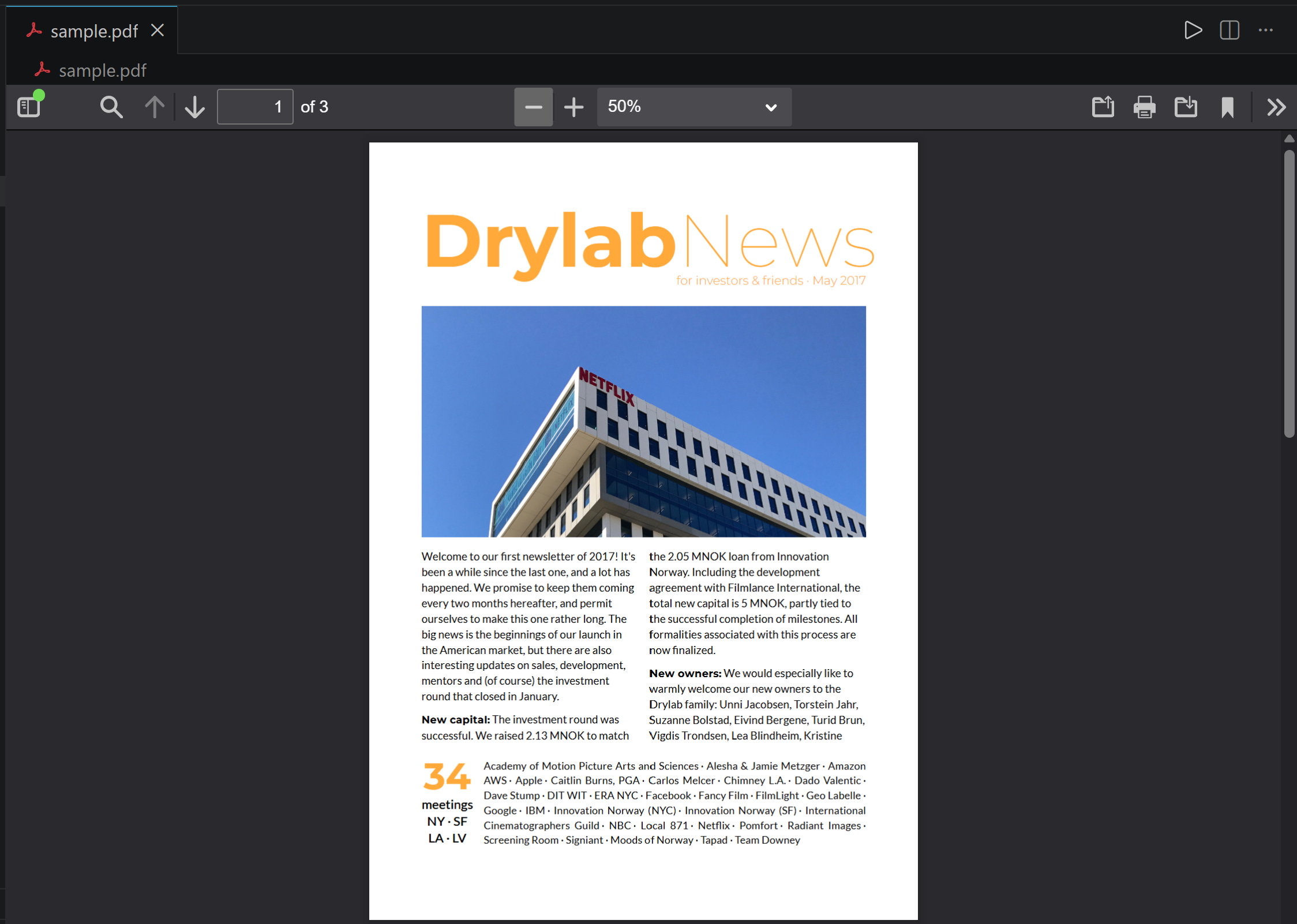
Assume your input is the sample PDF below:
The input sample.pdf
Convert it to Markdown with the MarkItDown CLI:
markitdown sample.pdf -o sample.md
Or in Python:
from markitdown import MarkItDown

md = MarkItDown()
result = md.convert("sample.pdf")

with open("sample.md", "w", encoding="utf-8") as f:
    f.write(result.text_content)
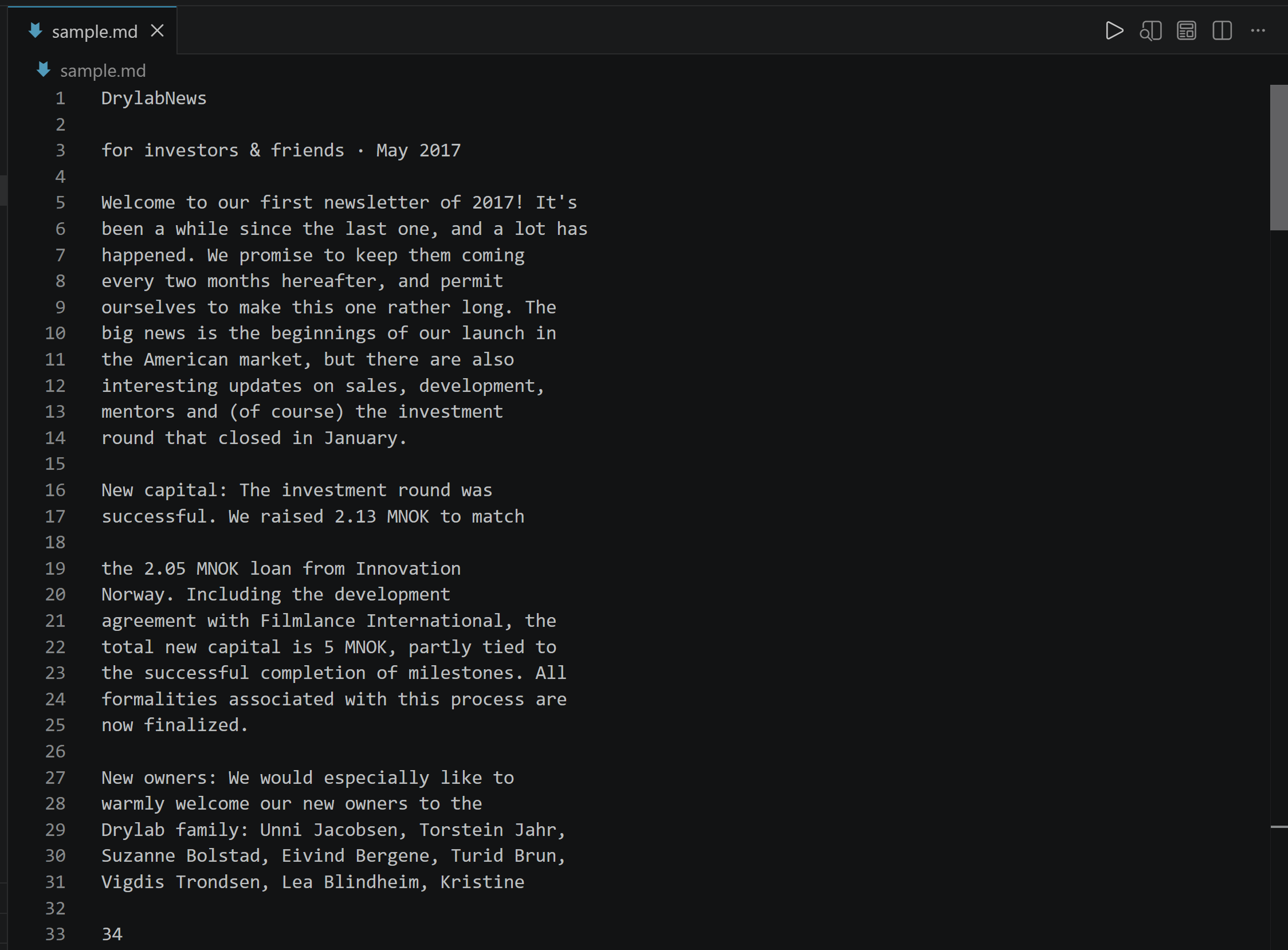
The result will be this sample.md file:
The output sample.md file
As you can see, MarkItDown preserves all the meaningful content from the PDF.
Excel to Markdown
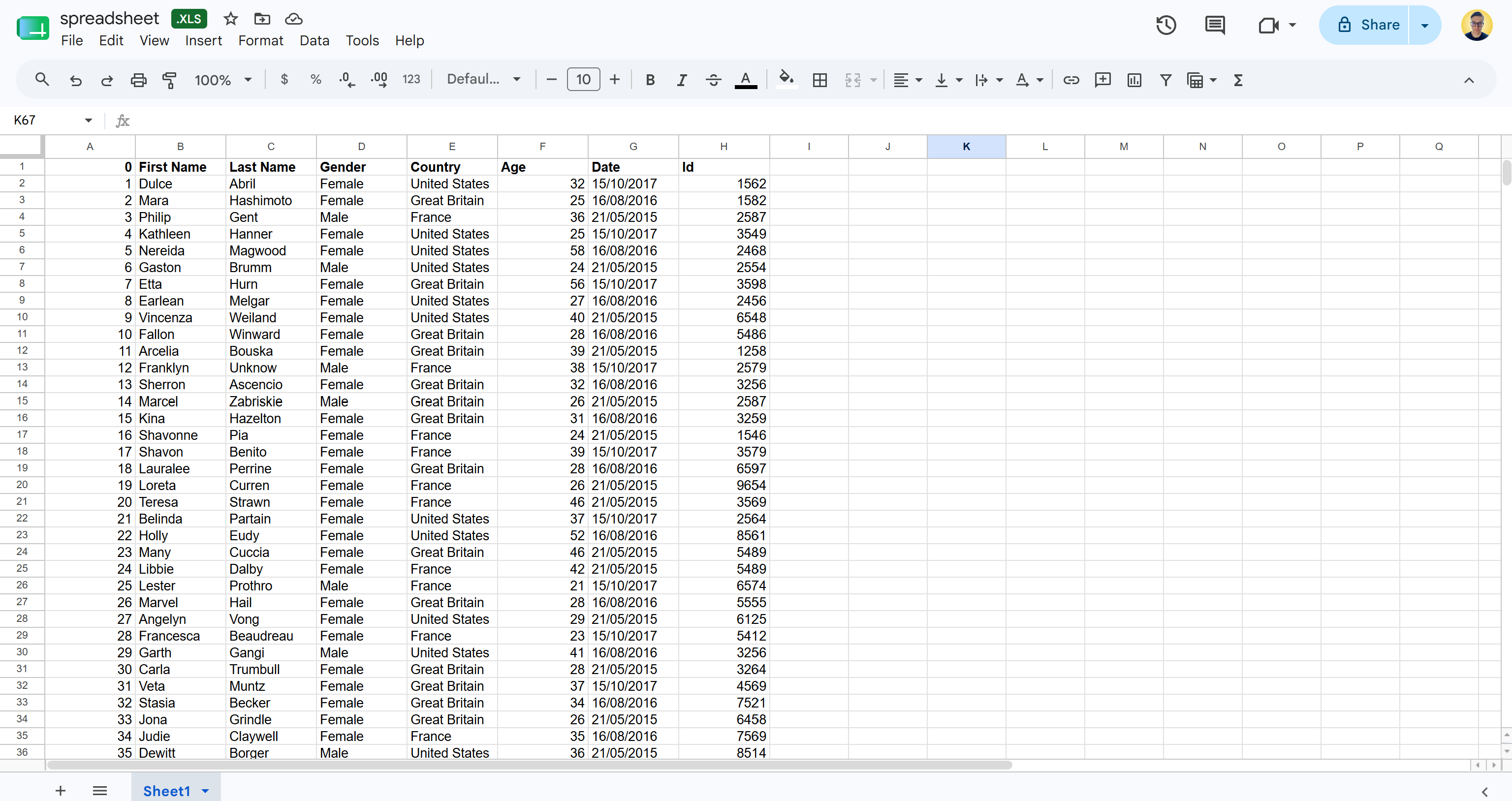
Now, suppose you have relevant internal data stored in an Excel spreadsheet and want to pass it to an LLM for analysis or processing:
The input spreadsheet.xls file
Convert it to Markdown through the MarkItDown CLI:
markitdown spreadsheet.xls -o spreadsheet.md
Or use the Python API:
from markitdown import MarkItDown

md = MarkItDown()
result = md.convert("spreadsheet.xls")

with open("spreadsheet.md", "w", encoding="utf-8") as f:
    f.write(result.text_content)
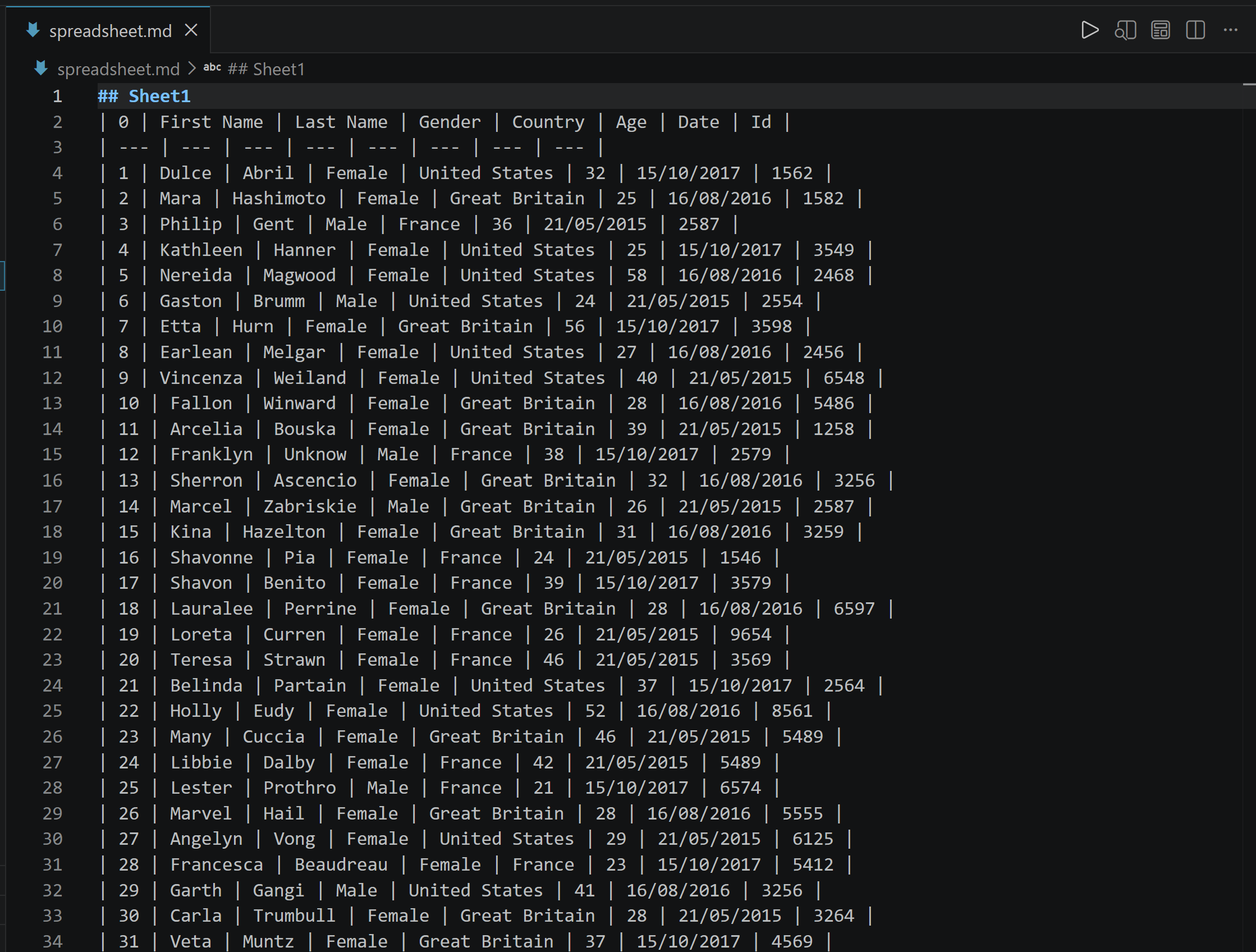
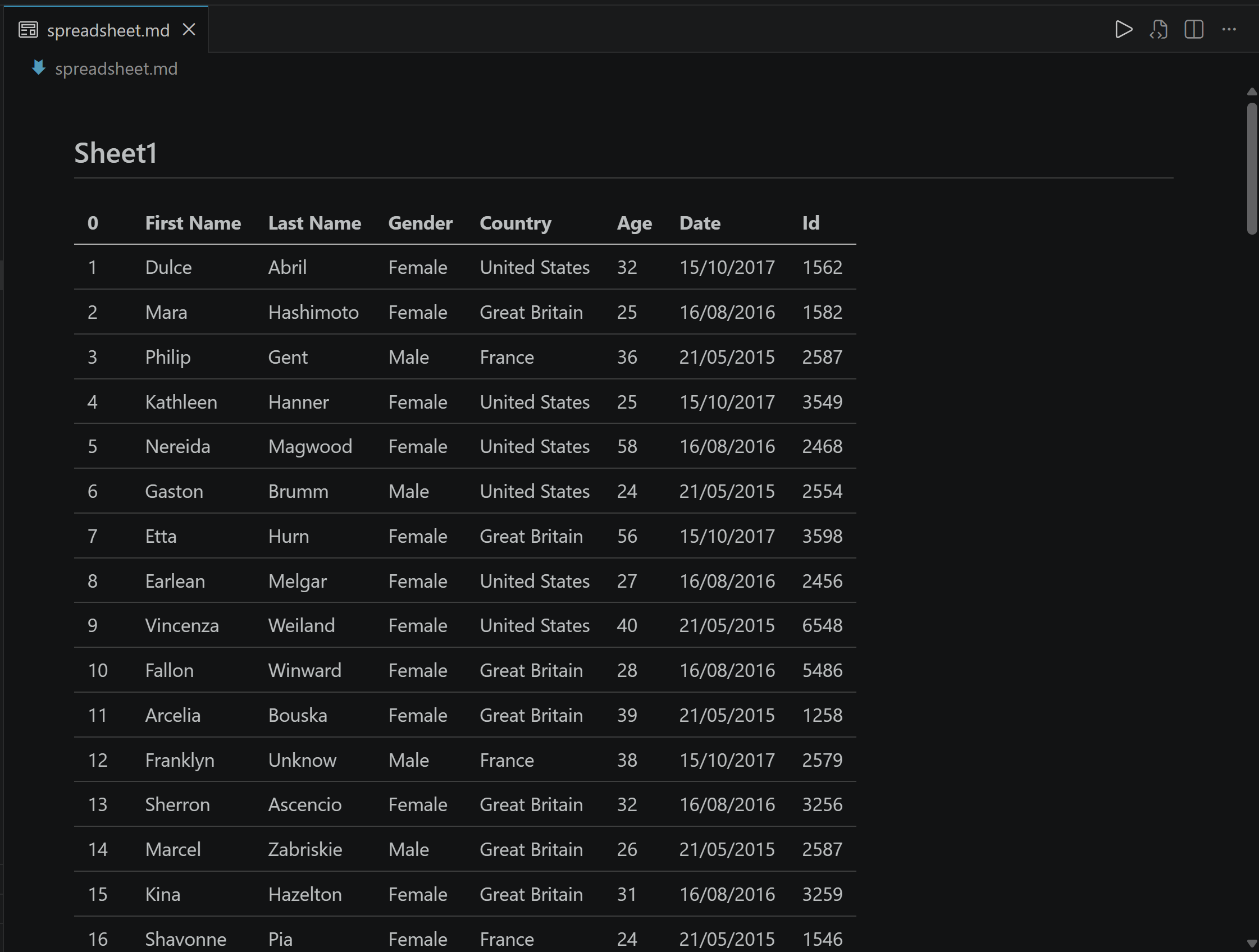
The result will be a Markdown file containing a table with the same data as the original spreadsheet:
The output spreadsheet.md file
Or, for a better visual representation, through the Markdown viewer:
Note the table in the spreadsheet.md Markdown file
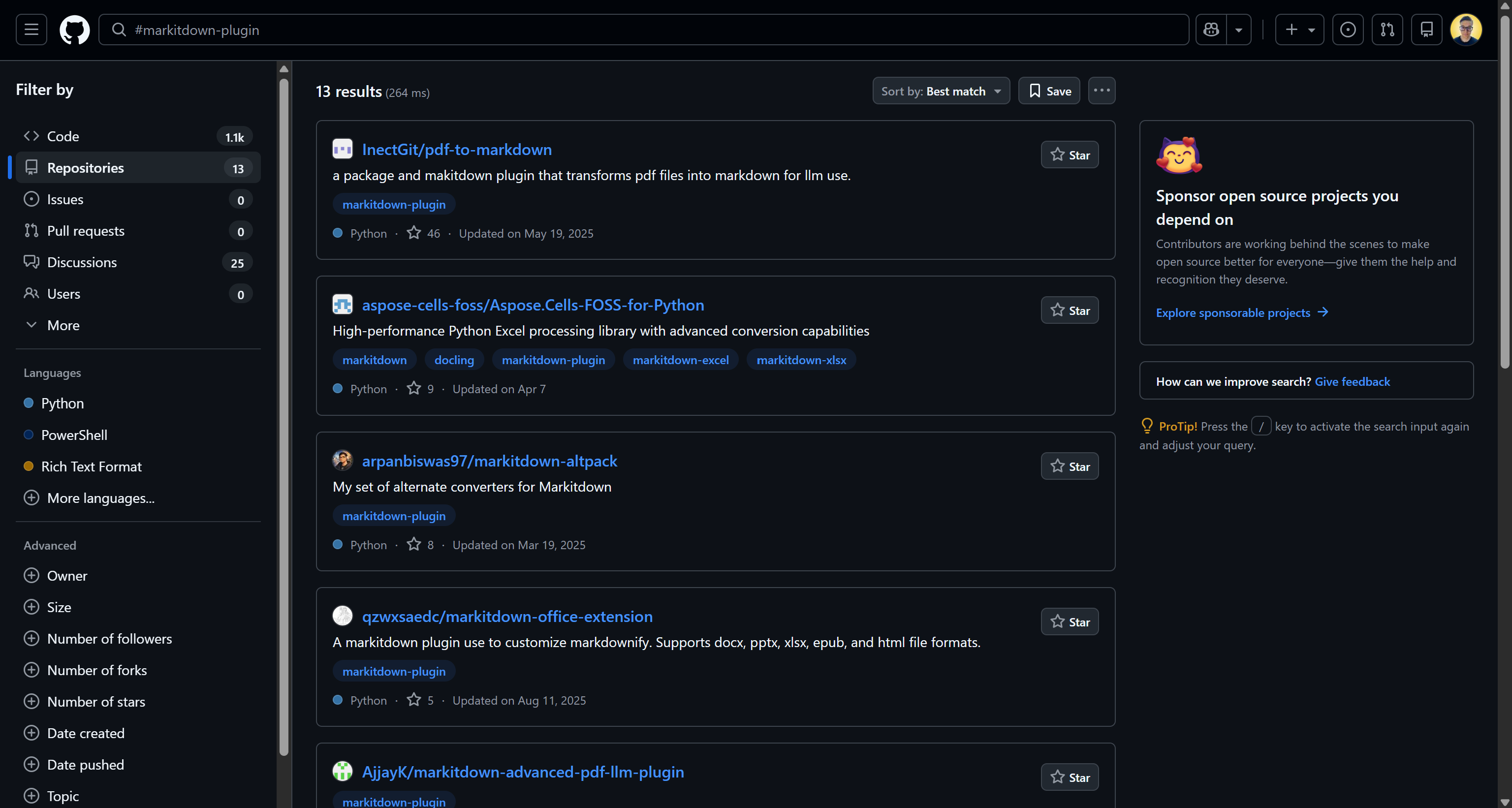
MarkItDown also supports third-party plugins that extend its built-in capabilities with additional converters and processing features. You can discover available plugins by searching GitHub for the #markitdown-plugin hashtag:
The result of a “#markitdown-plugin” hashtag search on GitHub
To list all installed plugins, run:
markitdown --list-plugins
Plugins are disabled by default. To enable them from the CLI, add the --use-plugins flag:
If you’re using the Python API, enable plugins by setting the enable_plugins parameter to True:
from markitdown import MarkItDown

md = MarkItDown(
  enable_plugins=True,
)
Once enabled, MarkItDown automatically loads all installed plugins.
MarkItDown Alternatives: Other Document-to-Markdown Libraries
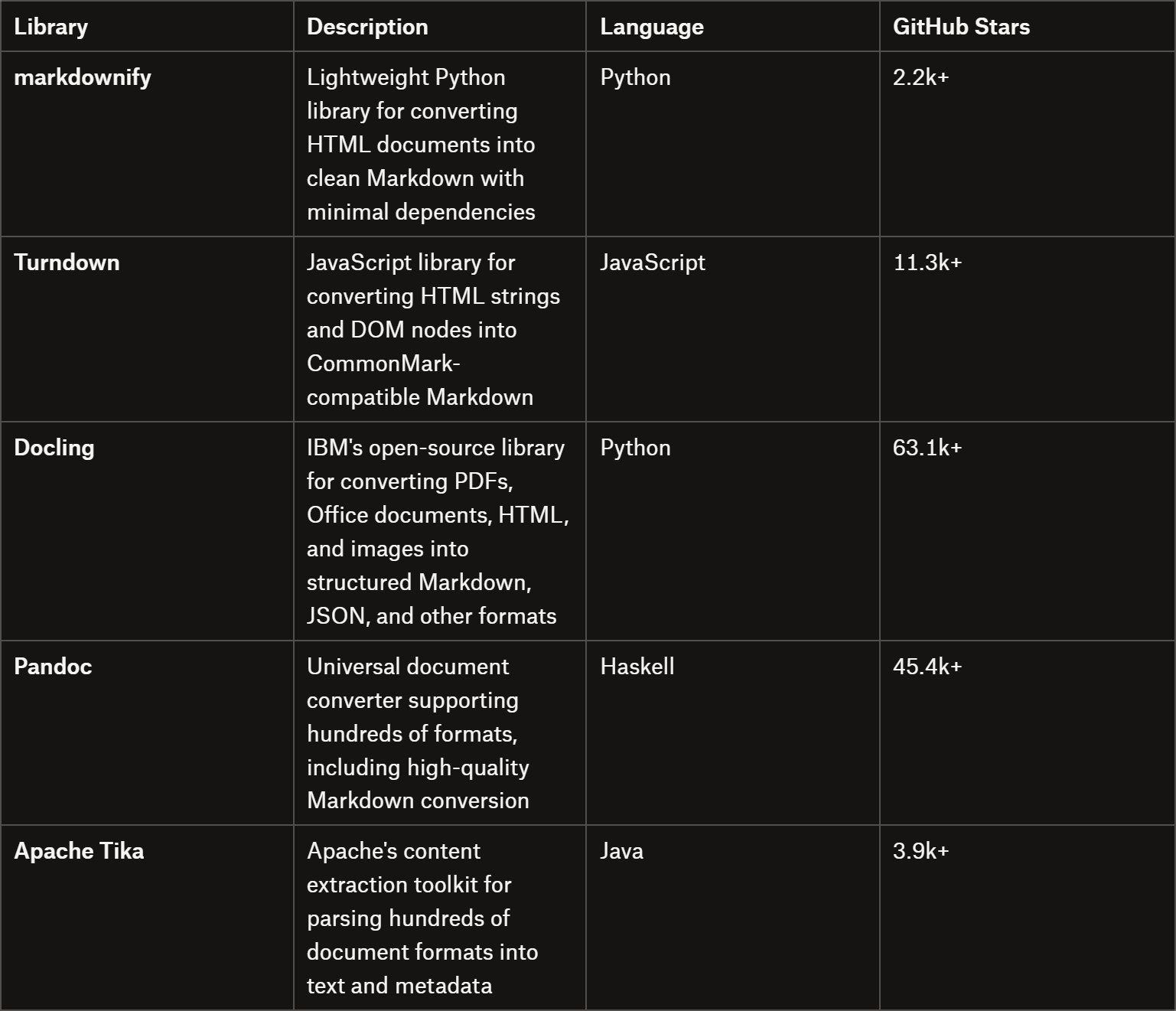
MarkItDown isn’t the only library for converting documents to Markdown. Other popular libraries for converting different types of data into Markdown include:
MarkItDown alternatives
The Web Scraping Club is a reader-supported publication. To receive new posts and support my work, consider becoming a free or paid subscriber.
Conclusion
Markdown is the language of LLMs and, as a result, the preferred format for AI-powered data processing and analysis pipelines. In this post, I covered how to use MarkItDown to convert web pages, HTML documents, PDFs, Word documents, Excel spreadsheets, PowerPoint presentations, YouTube videos, and many other file formats into clean, AI-friendly Markdown.
You now know how to get the most out of MarkItDown to prepare data for AI workflows, regardless of whether it comes from web scraping, downloaded files, or local documents.
I hope you found this guide useful. If you have any questions or comments, feel free to leave them below. Thanks for reading, and see you in the next one!
Thanks for reading The Web Scraping Club! This post is public so feel free to share it.
MarkItDown doesn’t provide a dedicated proxy configuration option. Still, it relies on the Python requests library internally, which supports proxy configuration through special environment variables. Thus, you can set a proxy in MarkItDown with:
import os
from markitdown import MarkItDown

# Set your proxy addresses (replace with your proxy details)
os.environ["HTTP_PROXY"] = "http://user:password@your-proxy-server.com:port"
os.environ["HTTPS_PROXY"] = "http://user:password@your-proxy-server.com:port"

md = MarkItDown()
# ...
How to deal with 429 errors when converting YouTube videos to Markdown with MarkItDown?
Try to convert a YouTube video to Markdown, such as with:
The MarkItDown MCP server exposes a single tool that allows AI agents and MCP-compatible applications to convert different data sources into Markdown. The tool is convert_to_markdown, which accepts http:, https:, file:, and data: URIs.
Install the MarkItDown MCP server with:
pip install markitdown-mcp
Then, connect it to an MCP-compatible client, such as Claude Code, Claude Desktop, Codex, Gemini CLI, etc.